
This chapter will cover:
- Improving your menu navigation
- Improving navigation in the main content area: text links, buttons, carousels etc
- Improving your footer navigation
A navigation menu, as well as any type of website navigation should be:
- Simple and intuitive (on all devices)
- Fit your website’s architecture
- Understandable to the user in terms of what will happen when they click on an element
Now user expectations do evolve over time, so you will need to keep up somewhat. However, the basics of website navigation haven’t changed nearly as much in the last decade as have other website standards. We recommend a more slow and steady approach rather than jumping on the latest interactive widget trends.
The layout of the screen as a whole
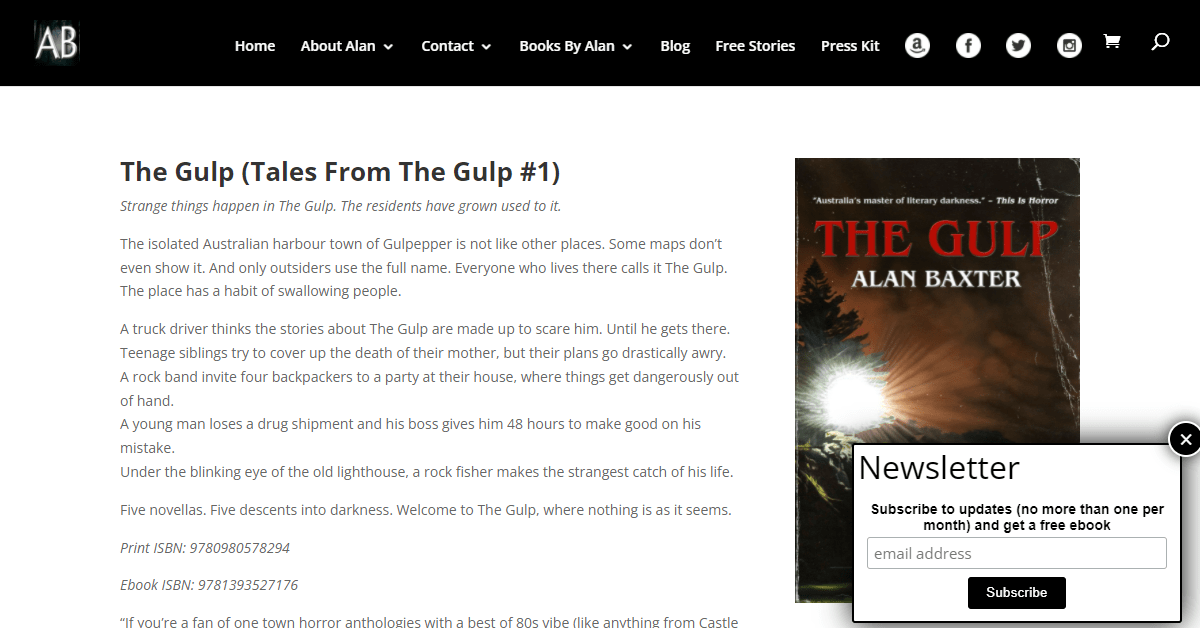
- People hate full screen takeovers that block everything on first visit. I hate it, you hate it, your visitors hate it. And people know this. So if you do a takeover it better be a legal requirement or you offering people something really good (eg. a big discount). But even a great offer still introduces friction, it’s not what people initially clicked through to the website to do. It’s usually better to present it more intelligently, eg. after the user’s interacted with the website a little bit. But as for standard things like “subscribe to our newsletter”, in every test we’ve run it will not collect many emails but will piss off a lot of people. Best to keep the screen unobtrusive and/or incentivise it if you can.

- If it’s important for users to have access to the top nav menu, you might want to keep it sticky, meaning that if the user scrolls down it stays at the top of the page. If you have any interactive widgets (eg. click to chat) these can also be sticky at the bottom of the screen. But having both is usually too much on mobile, it just doesn’t leave enough of the screen for your actual website. One solution is to use widgets that are context-dependent. For example a click to call widget should probably not be sticky to the bottom of the screen on desktop.
Your navigation menu
- It’s now a standard for mobile menus to be a hamburger menu with users clicking an icon like = to open up the menu. In fact, the majority of traffic is from mobile these days for a majority of industries. This leads a lot of website templates to sell themselves as “mobile-first” and keep this hamburger menu even on desktop. We think this is a bad idea for most websites. On desktop, you have the real estate and hiding your menu options behind an extra click will reduce interaction. Track this in your analytics if you’re skeptical (for a deeper dive on this, see chapter 19). Also, even if your website gets more mobile traffic, your desktop traffic likely converts at a higher rate (again check your own analytics to confirm). It’s not that people on desktop don’t know what the = icon does. It’s that they’re always distracted, always going to another tab.
- For a larger website you may need more than 1 level menu item (ie. sub-items). But if you’re getting to sub-sub-items this may be a sign that the menu needs to be simplified further. Also make sure to check that the user can navigate to the sub-item easily both on desktop and mobile. A surprising number of themes and website frameworks don’t do this properly, so that if a user clicks on a menu item with children instead of expanding the menu it takes them to the page corresponding to the parent item. Meaning they cannot navigate to the sub-item at all.
- Your menu items don’t need to be grouped under the same hierarchy as your URL folders. For example if your primary menu item is Services which groups sub-items like Steam Cleaning, Office Cleaning and Apartment Cleaning, it’s ok if the actual pages aren’t /services/steam-cleaning, /services/office-cleaning and /services/apartment-cleaning. However if there’s a big disconnect it might be a sign that you need to clean up your website structure.
- If you have more than a couple of menu items, you should be tracking clicks on the menu into your analytics tool, to determine which items are actually getting used. This always helps with menu refreshes.

Text links
- Yes the world has moved on from text links being blue and underlined, in fact you may be too young to have ever seen websites like this! However many themes today have link styling which is too easy to mistake for body text. A different colour can help but you should check it for contrast, and also upload a screenshot of your website to a colour blindness simulator to see if it’s actually obvious.
- It’s also quite common to have some links (especially links that point outside your website) open in a new tab. There is some debate about this in the UX community but generally the standard is to keep them in the same window (for the rationale see this article). There are cases where it probably makes sense from a business perspective, but it’s overused and you should be deliberate about it instead of defaulting to it. People know how to open a link in a new tab, that’s why you probably have 10-30 tabs open right now.
Quick TipIf a link goes to a PDF file it’s common courtesy to flag it so people know there’s a download. By editing your CSS/stylesheets (or getting a developer to), you can automatically add an icon at the start/end of all links depending on whether it goes to an external website, a PDF etc, see for example these two Google material icons.
Buttons
- All things being equal it’s good to have buttons containing actual links, so people can hover over them to see the URL, open in a new tab, copy the link etc. If your website is doing something fancy and interactive your button may not have that. And there might be a good reason for it, but be aware that this can make navigation more confusing.
- Using icons (even an arrow icon like ?) on buttons, quickly communicates this is a clickable element, something that might be obvious to you but not to your visitors.
- It’s also good to have a button change visually when a user hovers over it for additional feedback.
Carousels
- Just like with buttons, it’s very easy to have a carousel that most people don’t realise is clickable.
- A carousel on the homepage is also a super-popular design pattern. Now it’s fine if you just want to portray some sort of image about your brand. But if it’s meant for action (ie. clicking), in our experience these don’t get a lot of clicks. Which makes sense because most homepages get a lot of different types of people and it’s hard to address all their needs with one carousel. But track this in your analytics.
Breadcrumbs
- Breadcrumbs are pieces of navigational text usually at the top of the page which show the folders and sub-folders that the user is in to have reached this page and link to them, for example: Home > Asia > Japan > Kanazawa > Taxis
- They’re pretty straightforward but if you find that the URL structure is very different to the breadcrumbs you want to show (eg. if the URL for the above page is something very different to mysite.com/asia/japan/kanazawa/taxis) this indicates that your URL might need a cleanup.
Footer
- These days giant, busy footers are all the rage, we recommend you stay disciplined. There’s no need to tell your brand’s life story and some contact and social links plus any copyright notices and acknowledgements shouldn’t take up that much room.
- On some websites you might see some navigation links. These can be useful if they’re top-level or if your website is small. They can also be helpful in pointing crawlers to your key pages. But it’s very easy to go overboard. If you’re that plumber servicing multiple suburbs in Adelaide you should probably NOT have all those links to the suburb pages there, it looks (and is) spammy.

Pick a few important pages on your website and fill out this table:

