

Why exclude your internal traffic?
You and your staff are very atypical users of your website. You probably have a lot more repeat visits to it, you might have a lot more conversions (eg. if you test your website) and so your behaviour might be misleading if it makes it to reports. For example:
- In analytics tools, you don’t want your traffic and pageviews (or especially your conversion) stats skewed. It’s easy to be misled by a total that might include some edge cases for actions completed by you or your staff.
- In ads tools, sending conversion signals to an ad platform (eg. Google or Facebook) from your staff completing conversions might mislead the ad platform about the type of user that converts on your website which could make it harder for the platform AI to optimise your campaign.
- Even showing your ad to staff might cause issues. For example if your staff are racking up a lot of ad impressions but not clicking on your ad, the ad platform might think that your ad is less engaging than it actually is.
Who should be excluding internal traffic?
We don’t think there’s a hard and fast rule but it could be a concern if your ratio of internal to external traffic is high. This can happen if:
- Your website has a lot of staff, for example your company is international OR
- Your website gets a small amount of traffic, because then even if you were the sole owner operator, your website traffic might still skew things.
Can I just exclude my IPs?
You generally can and below we’ll show how to do that in some of the major platforms. However we think there’s a much better method for which see the next section. The reason being twofold:- More and more people are working from home, meaning gathering a list of IPs can become impossible.
- More and more internet service providers are rotating IP addresses so even a static list can become out of date very quickly.
However for simple cases this might be enough. Here’s how to set it up in a few places.
- Google Ads: Choose a campaign and click Settings then go to the IP exclusions text box

- Microsoft Ads: Choose a campaign and click Settings then go to the IP exclusions text box

- Meta Ads: There is currently no way to exclude by IP address.
- LinkedIn Ads: There is currently no way to exclude by IP address.
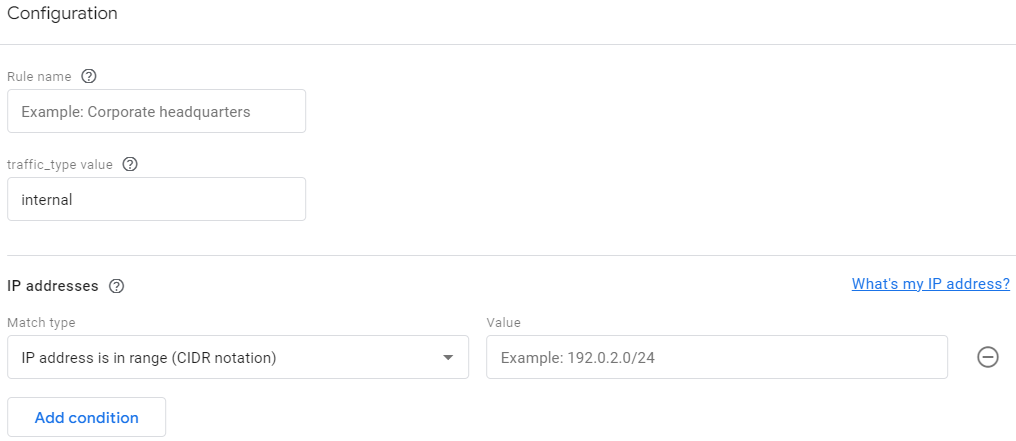
- GA4: You can do this by going to Admin > Data Streams > a specific data stream > Configure tag settings > Show all > Define internal traffic > Create to fill out the range of IP addresses:

Note that you’ll still need to explicitly tell GA4 to filter out this traffic by going to Admin > Data Settings > Data Filters and change the status of the pre-defined GA4 filter to exclude internal traffic from “Testing” to “Active”.


What else can I do?
Generally we use Google Tag Manager to save the fact that our user is internal in order to prevent firing of certain tags in the first place. The first step would be to determine how a user might be identified as internal. For example:
- Accessing a page that only staff have access to (eg. website admin area login)
- Clicking on a link that you send to staff which can contain a special parameter
- Visiting a staging subdomain of your website
- Anything else you can think of
For this article we’ll focus on method 2 but you can apply the principles to other methods. Let’s say our website example.com doesn’t have a special URL that only staff visit – we can then make one by getting them to go to https://example.com/?set_user_type=internal. Note that they would need to click once per browser they use to access the website and the setup below would need to be in place and tested before they click.
We start by creating a custom HTML tag that fires before any other tags on the page, let’s say on the Pageview event:
- Tag Name = Determine if user is internal or external
- Tag Type = Custom HTML
- Tag Trigger = All Pages
Below is the code to add to the textbox (click to copy):
<script>
	var isInternalTraffic = (localStorage.getItem("internal-traffic")==="true");
	if(!isInternalTraffic){
		if(document.location.href.includes("set_user_type=internal")){
			isInternalTraffic = true;
			localStorage.setItem("internal-traffic","true");
		}
	}
	window.dataLayer = window.dataLayer || [];
	window.dataLayer.push({
		'event' : 'fire_pageview_tags',
		'is_internal_traffic' : isInternalTraffic
	});
</script>
We will then need to create a new variable:
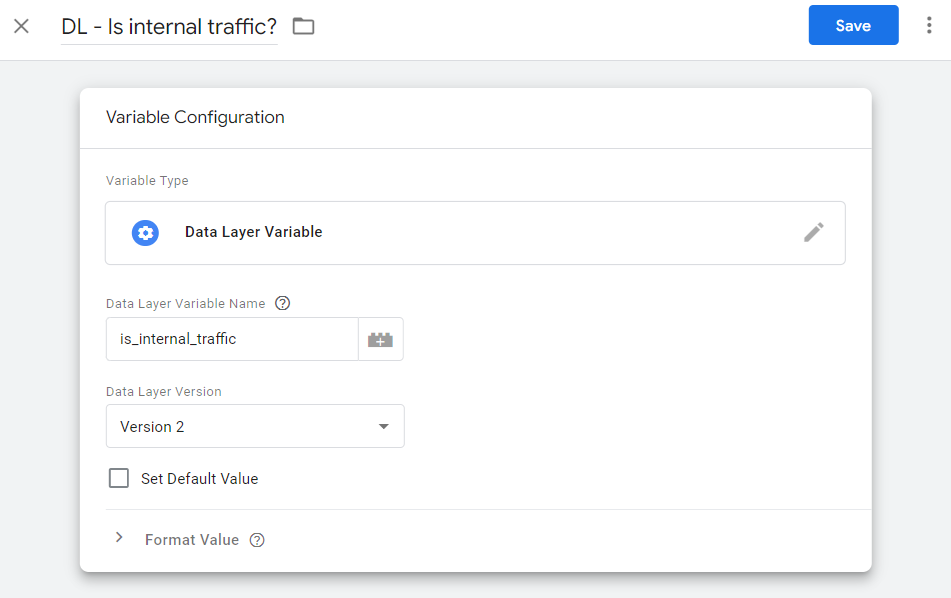
- Variable Name = DL – is internal traffic?
- Variable Type = Data Layer Variable
- Data Layer Variable Name = is_internal_traffic
And 2 new triggers, this one to attach to tags that fire on every page, such as the GA4 setup tag or your base Facebook Pixel tag:

- Trigger Name = CE – Fire Pageview Tags
- Trigger Type = Custom Event
- Event Name = fire_pageview_tags
- Use Regex Matching = No
- This trigger fires on = All Custom Events
And this one to add as an exception to all your tags:

- Trigger Name = CE – Exception for internal traffic
- Trigger Type = Custom Event
- Event Name = .*
- Use Regex Matching = Yes
- This trigger fires on = Some Custom Events (DL – Is internal traffic? equals true)
For GA4 tags, you may still want to track this data, just into a new property. In this case, create a new property and a new data stream and then you can create a lookup table variable that splits your traffic into 2 separate data streams. Then this variable can serve as your measurement ID in your GA4 setup tag: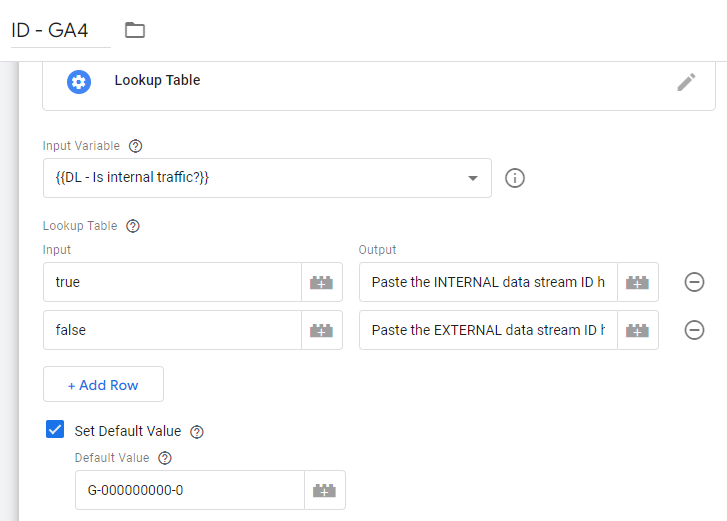
You can also use this variable to create exclusion audiences for ad networks to exclude your staff. For example, for Facebook, you can send data about whether the traffic is internal with each PageView event:
<script>
	fbq('track', 'PageView', {internal_traffic: {{DL - is internal traffic?}}});
</script>
And then define an audience inside Business Manager based on this parameter. Another option is to create a separate remarketing tag (this option is easiest for platforms like Google Ads) for a custom user action and then have the tag fire in GTM on the event “CE – Exception for internal traffic”. All of this would be relevant only if you have a fairly large organisation, otherwise the audience size won’t be enough.
This update does take a bit more work, but we’ve found to to generally be easier to maintain. Once staff click on the test link once per device, they can usually forget about it and not have their data in reports from then on, regardless of how many times they move or change ISPs.

