Your website’s not as good as you think it is

Contents

Intro: Do you need this ebook? Why should you listen to it?

Who is this ebook for?

Almost all of today’s significant products and services are researched and/or purchased online. The fastest way to reach your customers is to have an online presence, but what that ideal presence looks like today can vary greatly.

Everyone and their dog has a website. However, websites are very good at following the great Sturgeon’s Law: “Ninety percent of everything is crap“. This has resulted in millions upon millions of bad websites.

Some are just irredeemable and need a complete rework but others might be good in some aspects but be ruined by other aspects. And website owners are notoriously bad at judging whether their websites are terrible.

Is your website beyond repair? Likely not, but if you can answer yes to any of these questions then you probably need this book.

Who are we?

Aisling Wallace is a Director and Co-founder of Australian digital analytics and advertising agency, Tactic Lab. Since 2009, Aisling has worked on both the client and agency side of national and international organisations, helping build and/or improve their own digital analytics capabilities for better outcomes. Aisling holds an MBA, BCommerce, as well as certifications across Google and Facebook advertising platforms.

Michael Fridman is also a Director and Co-founder of Tactic Lab. Michael has a programming background with a BSc/BA but escaped the dev world to work in digital marketing in 2006. He has helped many startups including some household names like Menulog, and has presented ads and analytics training to in-house teams, but also directly to advertising agencies across Australia as part of the Google Partner program. Michael’s focus is advertising, SEO/websites and anything data or automation-related.

Aisling and Michael

Why should you listen to us?

You shouldn’t without verifying things for yourself! However in our combined 27 years of experience we’ve seen every type of website failure out there. We’ve also experienced the difficulty a lot of organisations have in finding a balance between website quality and their budget/time.

Our local and international client websites have spanned most industries and business models including:

  • B2B
  • Lead Gen
  • Rewards Programs
  • Entertainment
  • B2C
  • Content Marketing/Blogs
  • F&B Bookings
  • Learning Platforms
  • Ecommerce
  • Subscriptions
  • Tourism Bookings
  • Directories

This ebook is meant to be a top-level crash course about the items that you may want to improve about your website. It’s a starting point, not the final word. Whether you’re running a company, a non profit, promoting your own professional services or are in a creative industry, we hope you find this ebook useful.

What are the benefits of following this advice?

The main benefit is that your website will get more visibility, more visitors and these people will get what they need out of your website quickly and a higher percentage of them will convert and become your customers. The more competitive your industry the more important this becomes. For example, if your website is terrible and as a result just 2% of your website’s visitors convert, it’s not unreasonable for this number to become much higher (eg. 5%) after website issues are fixed. But this represents a 150% increase in customers!

What are the risks of not following this advice?

We hate seeing scare tactics used as clickbait, but we will fall on our own sword for this cause. Even for basic websites the stakes are higher than ever before. This applies to both the risk of getting things wrong as well as the reward for getting things right.

Let’s say you’re a small business owner with a small website. You might think “it’s not great but what’s the worst that could happen”? If your security is lax and someone hacks it and gets to your customers’ data, your business may potentially be liable for their financial losses (see chapter 7). It’s an extreme example but in the unlikely event it happens, it could be enough to ruin a business.

The much more likely scenario though is loss of business opportunity through a poor website. Our customers have less time and more distractions than ever before. If a website is slow, hard to navigate, or fails to communicate value and safety, within seconds customers move on.

Toy Story meme: 'generic copy & bad design everywhere'

1. If you think social media means you don’t need a website, think again

This chapter will cover:
  • Whether you need a website
  • The risks of renting content on other platforms (eg. social media)
  • The benefits of owning your own content

Do you need a website?

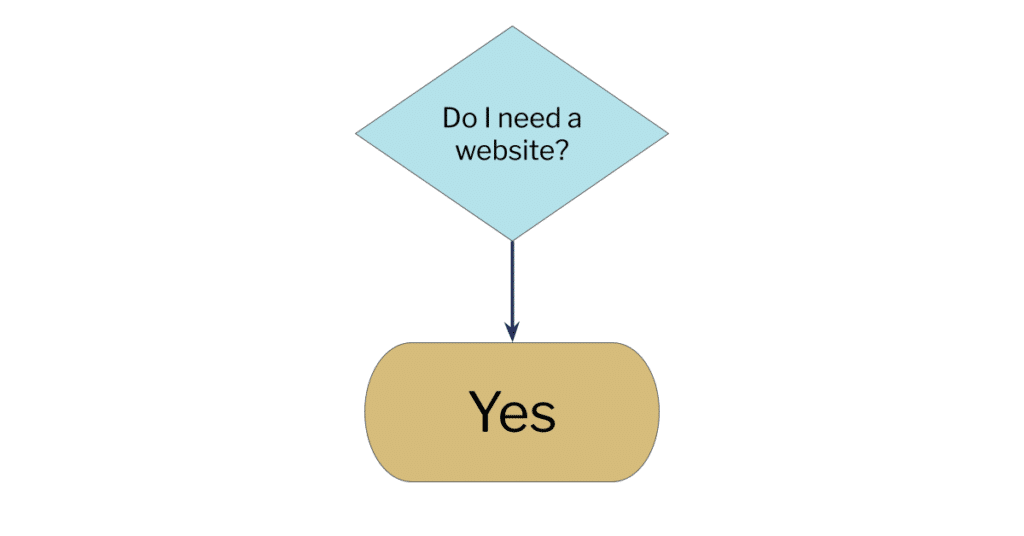
Here’s a flowchart you can use:

Flowchart: 'Do you need a website?' with a single fork to 'Yes'

Platforms/services people use instead of websites

A lot of businesses do great on social media and if you have started with an idea for a business it’s a much lower barrier to entry to just set something up on a social network or a third-party service. Here are some platforms where we’ve seen some businesses run almost entirely on that platform, and very successfully:

  • Facebook
  • Instagram
  • Whatsapp
  • Google My Business
  • TripAdvisor

You might have considerable success on some or all of these. So what’s wrong with that?

Rented vs owned properties

You may have seen the distinction but any time you set yourself up on someone else’s platform it’s like you’re renting. The landlord can change the terms at any time, and they can, do and will. Here are just a couple of examples:

  • Most social media shows your followers your posts based heavily on proprietary algorithms. If you don’t run ads your post might reach 10% of your followers in some cases. The Oatmeal summed this up very well in this comic.
  • Editorial policies can change overnight but even outside of editorial policy every social network is using a combination of machine learning and underpaid, overworked and traumatised freelancers to flag and remove offensive content. There are many false positives which can get your account or page banned permanently, often without much recourse. We once had a post linking to a major Australian non-profit taken down for sexual solicitation which is a great example of the type of stuff you can expect.
  • Where were you when Facebook’s Newspocalypse 2021 happened? Here’s an outsider perspective but in a nutshell Facebook stopped showing content it deemed as “news” to Australians due to Australia’s incoming media bargaining code. This was quickly reversed but there is no reason to think something like this can’t happen again. A social network will remove entire industries if it feels like it’s in its best interest.
Screenshot of popups from Facebook with error messages that Australian news content can't be posted.

Your website as a hub and insurance policy

Having a website is like living in a house you have a deed to. There’s no landlord and almost anyone can have a website so the only way you can be kicked out is if a government blocks you or your web host takes you down (eg. if you run a hate site). For a legitimate website run by an organisation in a democratic country this is not a huge concern.

It also serves as a central hub for your content, that you can share across multiple social platforms if you wish. Social platforms fluctuate in popularity and core audience, so it’s good to have your content in a place where you’re in control of its audience and longevity. Spare a thought for the poor kids who were happily breakdancing on Tiktok who have had their party crashed by millennial parents day-drinking themselves through lockdown.

Yes, investing in a website is more costly, more stressful and more time-consuming at first, compared to not doing it. But we promise, it’s much better in the long-run. Even if your website is just a glorified business card (and for some people that may be all you need), at least it will get people used to going there to find you and get information. Then if the worst happens they will know where to find you.

Quick TipIf you don’t have a website and are still not sure of the pros and cons, plan out a likely cost for your website (time and money) vs the cost to your business (again time and money) if the social network you rely on went down or banned you. The details will vary for most organisations but we bet the 2 numbers wouldn’t even be close.

For more ideas on reducing this risk, see chapter 3, chapter 6 and chapter 7.

2. You may have too many websites

This chapter will cover:
  • Whether you need multiple websites/domains
  • The risks and benefits of having one main domain

It’s common for a brand to expand its products/services beyond what it was originally set up to do.

This is usually a great business move, but sometimes it can lead to the proliferation of websites, for example:

  • samanthasmithcakes.com.au originally, but then this can lead to
  • samanthasmithpastries.com.au and then when she becomes a YouTube celebrity even
  • samanthasmithmerch.com.au.

Why would someone have separate domains?

ReasonThe reality
Direct traffic: maybe people would find it easy to type the variants into their browser directly?But if you think about it, the reverse is true, once you start thinking about variations your domain names get longer and harder to remember/type. Furthermore, this leads to brand dilution which would make your brand less memorable. For the example above, is it clear to everyone that the 3 websites belong to the same Samantha Smith?
Exact domain match: for example wouldn’t having ‘cakes’ in your domain name make it easier to rank for searches for cakes and same for ‘pastries’ and so on?While this may have been a factor once upon a time, it’s not really a ranking signal. It’s been known since at least 2015 that your domain name doesn’t give you some magic ranking signal – and why would search engines give weight to something so easy to game?
Linking reasons: maybe I can interlink all of my domains together to increase my rankings?This was always against search engine guidelines but it also hasn’t worked for well over a decade. Leave it be. Also it’s very hard to interlink multiple domains so that real users find it easy to navigate between them. As we’ll see, it’s hard enough creating a good navigation structure; once it needs to cover multiple domains it becomes much harder.
Logistics reasons: if the different domains are doing different things you might be hosting them on different platforms, each of them suited to what the website is. For Samantha the cakes website could be on WordPress if it’s brochure-like but maybe the merch store is on Shopify since it takes actual payments.This is understandable but we still don’t recommend it. It might be harder to set up a website that does the core things you would like it to do but it’s not impossible. Plus it will pay off in the long-run. Also, splitting your brands means you end up paying multiple hosting providers and having to worry about maintenance and security of multiple domains, which adds time and headaches.

When should you have separate domains?

The main reason to actually have multiple domains is if you have separate brand identities and names and ideally if these are also targeting different markets. Then a separation makes sense (in fact having them together might make the specific products and services less sticky.

Quick TipFactor in your future by asking yourself this question:
If I had to predict what new products/services I’ll be offering in 2-3 years, what would I guess?
This will help you forward-plan how many brands/websites you will need and minimise future changes.

If you own multiple domains, fill out this table:

3. Your domain name is not as good as you think it is

This chapter will cover:
  • What makes a good domain name
  • How to properly register and protect your domain name(s)
  • The pros/cons of changing an existing domain name

Even if your operates on a single domain name without the problem of multiple websites, your primary domain name might not be the best that it can be.

What makes a good domain name?

  • As short as possible: Given that most short domains are taken this is still a good rule to follow. People are getting used to slightly longer domain names but there’s a limit.
  • Not too many extraneous characters: It’s true that having dashes in the domain name will not hurt your SEO rankings. But it does make it harder to remember, it looks spammy, it’s easier to mis-type. And if you’re getting samantha-smith-cakes.com.au it probably means the one without dashes is already taken. Which leaves you open, even if the domain without dashes isn’t a live website now, it could be, which would introduce a lot of confusion.
  • Easy to pronounce: Most of the time your domain name will contain more than one actual word, in which case make sure that word boundaries are clear.
  • samanthasmithcakes.com.au is ok but the first word could be read as “Samantha’s”
  • trenttailortiling.com.au is a bit hard to parse
  • designbystuart.com.au is very clear with almost no chance of confusion.
  • Good choice of domain extension: There are lots more top-level domain names on the market like .sydney, .app etc and people are getting more familiar with them. But a .com.au is still the extension that makes the most sense for an Australian business if you can get it. In early 2022, the .au domain is also scheduled to release, but first dibs on those will go to the existing .com.au owners. Watch out for extensions often used by spammers since it might make customers pre-judge you in a negative light (eg. .biz, .info etc). And yes, getting the domain name for your specific country (eg. .org.au over .org) is worth it.
  • Not too generic: If your business and domain name is just your location and service (eg. balmainbakery.com.au), this may make it slightly easier to rank especially on a local search such as Google Maps. This wouldn’t be the case for a very broad location such as an entire city but for a suburb it may give you a slight edge. However this comes at the expense of branding. If your business is called just “Balmain Bakery” then people searching for those keywords may not have you in mind. If the space of bakeries in Balmain gets very cutthroat you may find it hard to rank for your own name/brand. This is something you have to weigh up but it may be possible to get the best of both worlds with a hybrid name (eg. “Sam’s Bakery Balmain”), although you should also make sure that it sounds good.
  • Not too specific: As per the previous chapter, if you peg your domain to a very specific service it might make it harder to expand.
  • Not easily confused/infringing: Don’t get a lawyer’s letter from a brand who believes you’ve infringed on their trademark or are trying to pass off as them etc.

How to register a domain name (properly)

Based on the above list you might think that finding a good domain is very hard – and it can be! There are some websites that help you in the brainstorming process, for example Instant Domain Search.

It’s good to register your domain name at a domain name registrar. Sometimes your hosting company or website builder will include the domain registration as part of the package. But then if you decide to move, will you actually keep your domain name? If you own a domain using this method you may want to find out. You can use auDA’s Whois lookup tool to check who has actually got control over your domain name.

Screenshot of Whois lookup for Tactic Lab's website

Domain names are a commodity, as long as your registrar has successfully registered the domain name on your behalf the job is done. This means there is not much room for good quality of service here, so you should feel free to shop around for a cheap registrar, as long as they are reputable. There are plenty of domain price comparison websites like this one to get you started. Conversely, beware – we’ve seen some Australian companies charging in excess of $100 for a domain name registration, when you can get one for around $10.

Screenshot of registrar pricing and features comparison for .com.au
Quick TipWhichever registrar you use, make sure that you have automatic renewal enabled for your domain and set a reminder in your calendar to make sure the credit card details are up to date and that the domain gets renewed. We’ve seen too many horror stories of domains put back on the public market for you to take chances.

My domain name isn’t ideal, should I change it?

This is a tough decision since changing it is often a pain. You also need to make sure this is done properly otherwise you may lose a lot (or all) your traffic. The project will definitely need some help from someone who understands web development, SEO and digital analytics but the major elements for you to be aware of are:

  • All the old domain’s links should be set up to redirect to your new domain name, ideally using a 301 redirect (more info on 301s here).
  • You should file a change of address notice with Google Search Console.
  • It’s best to hold on to registration of your old domain name indefinitely, or at least until you’re confident that both users and search engines have updated all their links and nobody will see an old link again.

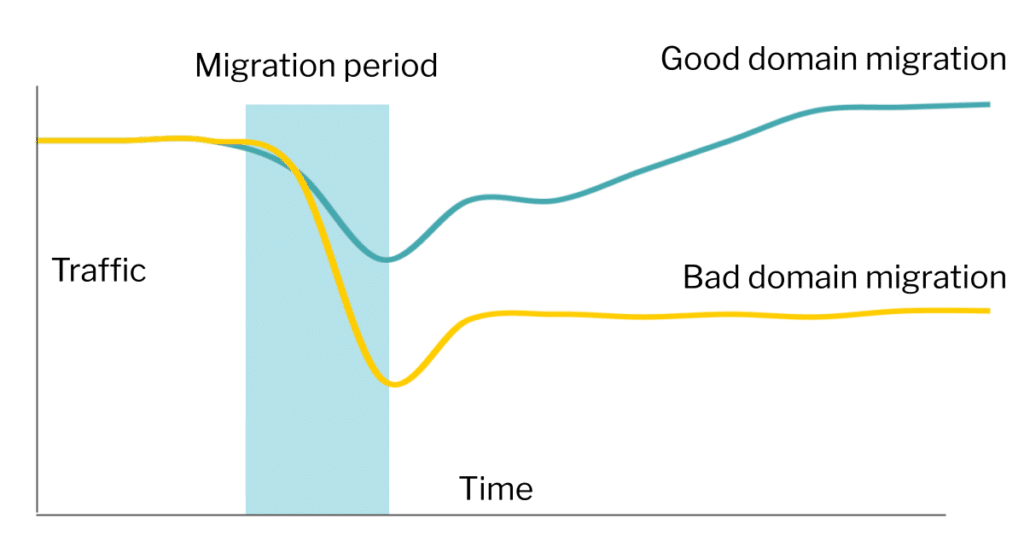
Even with a great domain migration, you will probably still see a dropoff in traffic. However, search engines are now much better at dealing with website changes, especially if the only change is your domain name. Meaning that traffic will generally recover quite quickly. If the domain name is a better fit you may end up seeing benefits within a few months.

Chart of a good and bad domain migration. Both see a dip in traffic during the migration period but for the good migration the dip is lower and returns back up quickly. For the bad migration, traffic stays below the old domain levels.

Annoyingly, even though there may be temporary downsides to moving domains, long-term if you are going to do it, the sooner the better, as years down the line you may have more traffic to lose. So the best time to move domains is never but the second best is (if you need to) as soon as possible.

4. Your CMS/website platform is not as good as you think it is

This chapter will cover:
  • The types of content management systems (CMS) that you can build your website with
  • Some ideas for deciding between these options

What are the different ways to build a website?

In chapter 1 we saw the difference between rented digital space (eg. your profile on a social network) and owned digital space (eg. your website). There’s another consideration, what type of CMS (content management system) should you choose?

TypeFunctionalityExamples
Fully-owned CMS/website buildersThese are ones where you have full ownership of the details and in theory can add any functionality you like, or pay someone to do this for you. In practice this is typically associated with open-source software (meaning there’s a marketplace of third party add-ons and plugins) and the option of hosting these on your own servers (or a web host’s).
Walled-garden CMS/website buildersThese are typically provided by a company (meaning they’re paid) and that company is responsible for all the functionality and options. They may allow third party integrations, they may not. Your favourite widget, plugin or service may or may not be compatible with these.
Custom coded websiteThis is the most flexible option and can be definition compatible with any other service you wish it to be. However it’s also the most expensive and time-consuming to set up and maintain.Most enterprise websites

Which one should you choose?

The table above represents a tradeoff between flexibility, functionality, choice and setup cost:

Chart showing that as the cost rises so does your flexibility, functionality and choice

You probably don’t need something fully custom-coded unless your website is doing something revolutionary. Chances are it’s not and that’s ok. Delivering great content and selling great products/services is one way to stand out but those things can be achieved with pretty standard, off-the-shelf solutions.

Walled-garden website builders are typically easier to set up and the quality of the functionality is high since the company controls all of the options, widgets and integrations. However they may have higher ongoing costs (the company needs to charge you a recurring subscription) and some functionality that you might need may just not be there.

Conversely, fully-owned and self-hosted website builders/CMSes take longer to set up but there is much more opportunity to customise. A drawback of a big marketplace of ecosystems is that there will be lots of options to pick from, some of which are low quality.

Overall, only you can decide what’s best for you. However, you should be aware that it’s easy to get started in a walled-garden type website (eg. Shopify for an ecommerce store) only to find later on that you will need something self-hosted, meaning you will need to rebuild things. All things being equal, if you can afford the time (or some help) in building a self-hosted solution now, it can make it easier to add more functionality and evolve your website as your organisation grows. This does come with a tradeoff too, in that you’ll need a more active hand in maintaining your website so that it works well.

Quick TipBe realistic about how much time you have – if you’re super busy with running your business and are on a skeleton staff then a walled-garden website might be the quickest and best solution too. However be aware that you might still want to move to a more custom solution later.

Another pain point we see with walled-garden websites and apps is their compatibility with your performance tracking tools like Google Analytics. Almost every CMS will allow you to add your own tracking codes — if not, please put it straight in the bin!. However, even some very popular platforms (like Shopify) do make it harder or impossible to implement more advanced reporting/tracking features. This might not be that relevant to you but you may want to see chapter 13 and chapter 19 before you sign on the dotted line for a CMS that does restrict you.

5. Your website theme/template is not as good as you think it is

This chapter will cover:
  • What types of themes can you choose from?
  • Considerations in picking a theme

Most website builders will have a number of themes or templates available to choose from. Depending on the type of CMS and provider you choose, this can mean slightly different things.

Visual-only themes/templates

For services like Squarespace, the theme is mainly used as a way to organise your layouts on the page and does not really affect the website functionality (ie. you can still do everything no matter what theme you choose). In this case, your choice of theme is not as important and it’s relatively easy to switch later if you need to. In which case the main thing we suggest is to think about how your website will scale if it needs to grow in the future. For example, if every brand you service has its own page (a question we explore for chapter 9), will the theme make it easy to build those pages and keep them looking good but consistent?

Themes/templates with in-built functionality

For other website builders though, the theme is not just cosmetic; it can come with functionality that makes doing certain things easier or harder. For example in WordPress, a travel theme might automatically put a search box on your homepage, whereas a generic theme would require you to find a plugin for this functionality. Some themes may also come with different workflows for laying out a page (eg. some WordPress themes also act as drag-and-drop page builders).

In this case, setting up the theme might be more time-consuming and it’s also harder to switch. Your choice of theme becomes more important. Some things to be aware of:

  • Can you use a plugin to do what you want instead of a whole theme?
    It may be hard to find a specific theme with all the functionality you need. Don’t worry though, if there is a marketplace of plugins or add-ons you can extend your website’s functionality this way too, whether you start from a generic theme or one that’s built for websites in your industry.
  • Your choice of theme will affect website speed
    Typically, basic themes without a lot of functionality are faster because their coding is leaner. Themes that do everything for you out-of-the box (or have built-in page builders) often do this by loading a lot of code and functionality on every page whether you need it or not, which slows your website down. When we build a website we typically start with a lean theme and only add the required functionality on top of it (however this is more time consuming).
  • There’s often a tradeoff between a theme’s functionality and how easy it is to customise
    If you are relying on your theme for a lot of website functionality (eg. that homepage search function), then you may find it difficult to customise. Typically themes with the most functionality also have a lot of options and admin screens and require a steeper learning curve.

Just like picking a website platform, you will need to find a sweet spot between a theme that makes the build easy vs its adaptability and speed/performance. We recommend looking at reviews and example websites built with the theme (see chapter 15 for speed testing).

Quick TipIt’s easy to be biased towards free themes over paid themes but this is a false accounting.
Unless the theme costs several hundred dollars a year (and the most popular paid WordPress theme Divi costs $89/year for all support and updates), paying the fee is probably a fraction of the total time+money you will spend on your website.
If a paid theme even saves you a few hours of setup time then it’s likely to be worth it.

6. Your hosting is not as good as you think it is

This chapter will cover:
  • The types of hosting available
  • Considerations for picking a good plan that doesn’t cost too much
  • How to protect your website even if something goes wrong with your host

Hosting for walled-garden websites

If you are using something like Squarespace, Wix, Shopify etc., then part of what you’re paying is the hosting service. This means the company takes care of all the hosting and makes sure to deliver your website as quickly and efficiently to whoever in the world might be visiting it. Usually they do a good job in order to keep their customers happy but it does mean you can’t really change much.

If you’re using one of these services, the main thing to be mindful of is backups and versioning. It’s true that all of these services have their own automatic backups and the chances of you losing pages because of an outage on their end are pretty much nil. But there are other reasons you should be keeping a local copy:

  • You want to revert to an earlier version of a page (or even website).
  • Your account is compromised or there are issues that cause it to be closed.
  • You want to migrate to a different service/website builder/CMS.
  • You want to protect yourself against the event of the service getting hacked/compromised/sold.

We recommend you check out the export process for your website host (here are instructions for Shopify and Squarespace) and do an export before and after any major changes, keeping the files hosted locally. You may also want to keep local versions of any images you upload if these are hard to source again.

If your provider doesn’t have this option there is plenty of free and open-source software that can archive your entire website locally (eg. WebCopy).

Picking a self-hosted platform and plan

If you picture your website as a physical shopfront, hosting is the electricity that keeps the lights on. Good website hosting essentially equates to good website speed and reliable website uptime. When you see brands apologising because their website crashed just as a new sale or product launched, it’s usually because of insufficient hosting. For platforms like WordPress, Joomla, Magento etc you get to pick your web host. There are thousands to choose from, which is both good and bad.

Like with any major decision you’d want to look at reviews but note that major tech industry publications also do annual comparisons and feature analysis of hosts which adds a more journalistic element (for example PCMag’s best web hosting annual list). Web hosting is a messy industry with very large companies that have millions of customers, so the service levels go up and down a lot. It’s also not as competitive as you might think, for example one company alone owns 60 web hosting brands.

Your host should not take your continued loyalty for granted. A bad host can make your life hell so don’t be afraid to ditch yours if need be.

Most major hosts have a range of package types, for example:

Hosting TypeWhat is it?ProsCons
Shared hostingThe host tries its best to share resources but in theory it’s possible for one website to overload the server and crash all of the others, although this is typically restored very quickly.The cheapest option.The slowest/least reliable as you are sharing your server with potentially thousands of the host’s other customers. If you have a business website we’d recommend you go at least one tier above this if you can.
Virtual Private Server (VPS)You get your own resources which sometimes you can split across multiple domains if you own them. You will not be getting your own dedicated machine (hence the ‘virtual’) but the software is set up to segregate your resources from other customers.Better performance, speed and security. Many hosts have a self-serve process that sets a VPS up for you without you needing to get too into the weeds.More expensive than shared hosting and can require more tech knowledge to run.
Dedicated serverYou get your own physical machine(s) allocation. Essentially you are renting entire machines to do nothing but deliver your website to users.If set up right, the fastest option with the best performance. If your website gets a lot of traffic this may be the only viable solution.This is the most expensive option and may not be necessary until your website is getting a lot of traffic.
Platform-specific (eg. WordPress) managed hostingThe above 3 options are generic meaning you can use it for any website/platform that the host supports. But if, say, you want to host a WordPress website, this is a very standard set of packages so it’s easy for the host to create an optimised environment for WordPress which is what managed hosting is. You can get this for most major platforms but it’s most common for WordPress.Usually this is similar in pricing to a VPS (or more) but can save you time because it’s preconfigured, and can also perform better. If you’re focussed on just one domain (which you probably should be, see chapter 2), this is the option we’d generally recommend. It usually scales with your traffic too.Can be more expensive than other options (except dedicated servers). Because your hosting is managed your host may impose some limitations on what functionality you’re allowed to run, but this is rarely a dealbreaker.
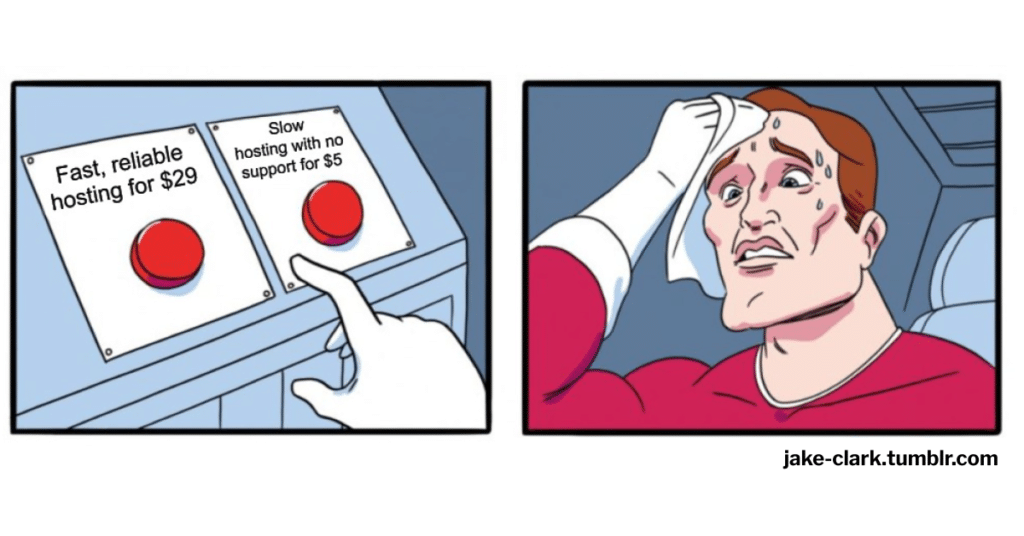
Dilemma meme (jake-clark.tumblr.com) with buttons saying 'Fast, reliable hosting for $29' and 'Slow hosting with no support for $5'

Other considerations for a web host

Speed is a major factor and most of the best-value host companies are located in the US. They do have servers scattered throughout the world, but it’s usually faster if your website is hosted in the country where most of your visitors are. These will usually be more expensive however as these companies are smaller and don’t have the same economies of scale.

Most web hosts will automatically back up your website, but you should definitely look into the following:

  • Are these daily? How long are they kept for?
  • Does your hosting plan allow you to see these automatic backups, download them and restore your website to one of them in case of a disaster?
  • How easy is it to do a manual backup and download it to your own computer and/or restore to it?
Quick TipDon’t rely on your host 100% to back up your website – it’s still best to download a local copy if you can, at regular intervals (eg. once a month) and especially before and after major changes.

Web hosting is a cut-throat industry and there are plenty of customer service disasters out there. One thing to beware of is if your web host has also registered your domain then you have a single point of failure for your whole business. You may want to keep your domain registration separate for other reasons (see chapter 3) but that’s another one.

Given how important website speed is (see chapter 15) it’s also worth reading a potential host’s reviews, or quantitative tests in terms of how fast they can serve a website to users.

7. You will get hacked: your website security is not that good

This chapter will cover:
  • How high your risk is to getting hacked (very)
  • How can you make your website secure?
  • What are other security practices that will make an impact on your business?

Are the risks that bad? Yes, yes they are.

A security breach could be the single biggest catastrophe for your organisation. Think you’re safe because your website doesn’t take payment or collect/store sensitive customer data? It’s still a risk for you if your website is hacked and used for spamming. You may potentially even be liable for losses incurred by the general public if they get hacked/scammed as a result of your systems being hacked.

'I see dead people meme' saying 'I see cyber risks everywhere'

You should definitely consider cyber liability insurance, offered by a wide range of standard and specialist insurance companies. (Keeping in mind that strict cyber crime is likely not covered by your professional indemnity insurance anymore.)

Quick TipEven if you decide cyber insurance is not for you, most policies have a checklist of practices that you can use to set up the items mentioned.

Website security

This is not a comprehensive list but here are a few points of consideration. If you’re on a fully hosted service like Squarespace they will take care of most of this for you, but you should still check just in case. If you’ve gone the self-hosted route, the reference list below is a good start but not comprehensive by any means:

  • SSL Certificate: Every website these days should be on HTTPS not the old HTTP. There is just no excuse for having a website on HTTP anymore. Search engines give HTTPS a small ranking boost (but since almost all websites that rank well have it, this is equivalent to a penalty for being on HTTP). Similarly if you start filling out a form on a HTTP page, your browser will typically flash that the page is not secure. How’s that going to work out for your conversion rate?
    Screenshot of what you can see in Chrome when you click on the padlock for an HTTPS page or a 'not secure' warning for an HTTP page
    Even for self-hosting, these days you can get a free SSL certificate with Let’s Encrypt or Cloudflare, compatible with most hosts. Note that a certificate is not enough, you need every element on each page to be secure or a browser will not show a padlock to the left of the URL. You should check your key pages and if it’s not there use a scanning service like Why NoPadlock? to work out what’s wrong.
    Screenshot of a Why No Padlock scan of a website, showing some reasons for an SSL error
  • Software updates: If there’s a new version of a CMS/website builder, theme or plugin that you’re using, you should perform the suggested updates. Many updates patch up security holes, which keep being found very regularly in many services and can be manipulated to steal user data, business data or hack into a business. If you can run these updates once a month that’s great, but definitely once a quarter at the very least. There is a chance some things may go wrong so make sure to take a full backup and have a rollback/disaster recovery plan (see chapter 6). And test key website functionality, especially key conversion points like online payment, lead capture, account creation etc.
  • Forms: You generally don’t want spammers or bots filling out your website forms. Not only is it super annoying for you to dig through spam leads but if your form automatically generates an email to someone then a spammer can start using it to spam 3rd parties which means you might be breaking spamming laws. The easiest solution is something like Google’s RecaptchaV3 which scans each user’s interaction with your website invisibly and uses AI to work out if they’re likely to be a bot. It’s free for the first million calls per month and integrates with a lot of website builders. There are usually no squiggly lines to decypher or checkboxes to tick. However there’s always a tradeoff, if your website is analysing the visitor’s behaviour to work out if they’re a bot or not, this will slow it down slightly.
  • URLs: You also want to prevent personal data leaking into the URL as people move through your website, because the URLs that a user visits are visible to their Internet Service Provider and can be visible to a lot of other parties like browser plugins and extensions. It’s quite common to have account management and payment parts of the website go through a lot of data in the URL so you should check if this exposes anything. Some examples below:
    • mysite.com/payment-completed?amt=1200&email=susanna.ece@someemail.com
    • mysite.com/health-search?drug=arilacogin&age=28&height=170&weight=82
    The more a user is likely to be expecting privacy based on who they are and what your website does, the more you should pay attention to this.

Email, account and payment security

Your website is probably not even the most vulnerable part of your digital empire, that would be your email as well as any online account you might have with an insecure password. An insecure password is any password that you can remember off the top of your head or which you’ve used for any other service.

Simpsons cardboard fort meme. The cardboard fort says 'Strong password'. The fort when it falls apart with Bart hosing it down says 'Using it for multiple sites'.

You need a password manager, which will encrypt your passwords for each website so you only need to remember one password to open your password manager. There are free ones like Keepass and LastPass or affordable paid ones like 1Password. Your browser can also save your passwords, but however you do it please don’t use your head to keep your passwords, that’s a sure way to make them non-secure. Don’t use any tricks like swapping an E for a 3, we promise you the people whose entire livelihood consists of breaking into accounts to steal money have thought of these too. If you’re not on a password manager, put down this ebook and go create an account, then move all passwords into there (and make them secure). Finally for your main password to open the password manager we recommend a passphrase which can be generated by a tool like this one.

Annotated screenshot of using 1Password to log into TikTok

You should also have 2 factor authentication (2FA) turned on for any account that lets you — and these days many services do. This means your account is also secured with a code that you get by SMS or on a phone app like Google Authenticator.

Finally, beware of scams. We’ve had experience with scammers breaking into emails and sitting there patiently for months waiting until there’s talk of payment and replying with the bank details before the real person does. We’ve seen scammers call your phone provider pretending to be a person saying they lost their SIM card to get their phone switched off, all so that they can intercept the 2FA security code that’s sent by SMS. We’ve heard it all. Today’s scams are smarter than ever, and you and your team are busier than ever which is how phishing and impersonation attempts slip past.

Quick TipDon’t share passwords, credit card details, bank accounts or even payment authorisations via a single platform, such as text or email. If you need to, split up the details across platforms but for authorisations of major transfers, a phone call is best, to be safe.

You’re only as strong as your weakest link.

8. The people helping with your website are not as suitable as they think they are

This chapter will cover:
  • The types of help that’s available for your website and their pros and cons
  • How to brief someone in properly about a website project

A bold thing for an agency that helps with websites to say, no? We’re not even saying that most people/organisations are bad at their jobs (although of course some are). What we are saying is that you should be aware of the limitations and incentives for each type of person/organisation that might be helping you with your website.

Buzz Lightyear Clones meme saying 'We are a data-driven agency working with the biggest brands to drive results and maximise your ROI', from @digital_chadvertising

Why would you need help with your website in the first place?

Things go wrong online very regularly. A lot of things you might be able to solve yourself, or your website builder/host might solve automatically. Sometimes though, this is beyond your ability and you’ll need to get someone else involved. Some percentage of requests to them will be beyond their ability and they will need to engage their own second tier of support. And so forth; you’d be surprised how deep this goes.

Who might be helping and what are their limitations?

PartyConsiderations
YouAs the business owner/person with whom the buck stops, all things being equal you have the most business context and the most organisational knowledge. Your limitations are probably (1) not enough time, (2) not enough technical knowledge and (3) not enough knowledge of the digital space. Most business owners admit their time and tech limitations quite easily but we’ve found that it’s sometimes hard to admit that you might not know the best thing from a digital strategy perspective. Even though you’re the expert for your vertical, there will come a time when someone’s advice rubs up against your gut instinct. Parts of this book might qualify. There’s no hard and fast rule about who to trust but if you’ve gotten a 2nd opinion or if the other expert has industry experience that should lend additional credence to their advice.
In-house staffStaff are usually better-placed than you to help with a lot of things, depending who they are, and if you can afford in-house staff. The main thing to watch out for is for an organisation that’s small you may be relying on someone whose main focus isn’t websites or digital marketing (eg. they might be doing some admin too), and in that case even if they’re brilliant they may struggle to stay up to date in an industry that’s very fast-paced.
Web service support staffThis includes support at your web host, your CMS, your EDM platform (eg. Mailchimp) and so on. The benefit of this is that it’s usually free within your existing payment plan. But this is the drawback. Each company gets an enormous amount of support requests and are always trying to spend as little time per ticket as possible. Prepare as much information as you can to help them quickly understand what you need, and understand that you will have to make time to follow-up until you get it. The support staff also wouldn’t know your business objectives, so if you’re trying to troubleshoot something that ultimately isn’t in your best interest they’re not likely to save you.
Agencies/ consultantsUnlike on-demand support, you can develop a relationship with an agency or consultant and they will soon come to learn your business context and therefore their recommendations will be customised. You might also be able to draw on their own support network, for example it might be easier for them to formulate certain support questions for you to pass on. We’re an agency and have seen many different agency models over the years. It’s important to consider if the payment incentives of the model are aligned.
  • If you’re paying a percentage of ad spend then the agency is incentivised to get you to spend more, and disincentivised to work on things that are orthogonal to that (eg. many website improvements).
  • If you’re paying by the hour, the agency is incentivised to pitch for more work than might be cost-effective.
  • If you’re paying a flat rate, the agency is incentivised to cap the amount of work they do on your business.
This doesn’t mean any given agency is bad because of their chosen model, just that every model will have drawbacks and if you’re aware of them you have more context. For example if a consultant you’re paying by the hour is suggesting you do some of the work, they are probably trying to save you money. You should also be very clear about who owns various assets (websites, third party service account, any auxiliary accounts) and who will own these if you decide to change providers.
FreelancersThe items to be mindful of are similar to agencies/consultants but these are likely to be cheaper. A freelancer however is more likely to be a single person operation which requires even more trust than an agency/company approach. There may also be an intermediary platform such as Upwork involved which can add as an extra insurance policy and/or quality control with their past job feedback/score. Since freelancers are more likely to be asked to do one-off projects, the quality of delivery will often depend a lot the quality of the brief you provide. We’ve got some tips of on these further below.
Forums, social media etcThere are plenty of great Facebook groups, subreddits, question-based websites like Quora that you can post in etc. Because these are free-flowing any advice will be reasonably up to date with industry trends. However it is likely to be general since people are unlikely to have a lot of time replying to an answer for free. You could go the extra step and hire one of the respondents to implement the solution, but this depends a lot on the platform (for instance some Facebook groups allow it, others don’t).
Videos, blog posts, booksThis knowledge is going to be more comprehensive but usually you would need at least a reasonable amount of background to be able to tailor a solution to your specific case. Sometimes even a great solution in a blog post might need a lot of modification for which you might need to consult one of the other types of people in the list. Plus you need to watch out for recency, a blog post or book about something website-related may get out of date quickly (or not depending on how it’s structured), so you may need to validate the approach with someone first.
Quick TipBefore seeking external help, make sure to Google/Bing/DuckDuckGo your question. A surprisingly large % of the time, when clients have a question for us that’s how we get to the answer and often it’s in the first few results. No support staff will know all the tricks/technologies so they’ll start with a search too.

Writing a clear brief

A lot of the times the failure of someone to help with your website can be traced back to the original brief. It’s not a guarantee but a clear brief will eliminate confusion, speed up implementation and serve as a fallback in case of disputes. Here’s what we’d recommend for writing a clear brief:

  • State the business objectives/outcomes upfront. Many times we get asked to do something and on asking “why”, it turns out that if we did the thing it would not actually achieve the objective. It’s entirely possible for a website owner to know what must be done but to have the wrong idea of how to achieve this, so state both. For example we might be asked to implement an email collection takeover popup on a website. But if the ultimate aim is to get as many people to sign up to a newsletter, the popup might not achieve this (if it’s distracting and annoying enough). If the person helping you knows this they might be able to suggest alternatives. Even if that’s not the type of interaction you’re looking for, it will help you evaluate the project.
  • Document what’s going wrong currently. For issues/bugs, state the exact steps that need to be followed to reproduce the bug. Include URLs. Include screenshots. Include a video recording if it’s particularly complex.
  • Document what success looks like in detail. If you need to do a mockup or a flow chart, do it! It could save hours of headaches and thousands of dollars or more. You can use a wireframing tool like Moqups but even something like Google Slides is much better than nothing.

Below is an example brief:

Business objectivesIncrease the number of appointment bookings on mysite.com.
What’s going wrong currently?
  • The appointment booking form at mysite.com/appointment has a low booking rate.
  • I think this is because too many people are typing fields like Date in the wrong format, having their submission fail and getting frustrated
  • The form also doesn’t look great on mobile.
What does success look like?
  • Form styling is updated so it looks sharper and easier to fill out on both desktop and mobile.
  • Fields are easier to fill out, especially for ones that require a specific format (eg. a date picker for the Date field?)
  • User feedback is given as the user types,
    • If a user has completed a field successfully, have its outline change to green and add a green tickbox into the field.
    • If a user has added data in the wrong format to a field, have its outline change to red and add an error message below the field.
  • Once a form is submitted, change it to go to the appointment thankyou page which we have created at mysite.com/thanks (instead of the current message below the form).
Man with picture of a dragon getting a tattoo, but the actual tattoo is like a child's drawing version of the original. Caption says 'there is always someone willing to do it cheaper'.

Here’s a placeholder for you to have a go at your own brief.

9. You probably have the wrong number of pages

This chapter will cover:
  • What counts as a website page?
  • How can you make sure that you don’t have too many or too few pages?
  • Making a website plan to ensure that each page is pulling its weight

What’s a page?

This might seem simple enough but there are a few subtleties that will affect your website structure. One working definition for a page is ‘a unique set of content/functionality presented on a website’.

You should try to aim for a close relationship between the two, so each page has its own URL and each URL represents a unique page. Luckily almost every off-the-shelf CMS (eg. WordPress, Joomla, Squarespace, Wix etc) do this most of the time by default, although in advanced cases you may still run into exceptions that need fixing (see below).

Can you get by with just one page?

As we’ve seen, if you run a dynamic web app that you have to log into, maybe one URL and one page is fine. For a small website, we often see a single page that’s quite long and lists out sections that the user scrolls to (or is scrolled to if they click the navigation). For example for a restaurant you might have these vertical sections:

  • About
  • Menu
  • Book/Order
  • Gallery
Visual representation of a website page that incorporates the above 4 sections

[Photo via]

Quick TipIt’s usually much easier to rank separate pages for different types of searches in search engines than it is to rank a single page for a lot of very different searches.

You don’t need to have a one-to-one relationship but if you map a specific URL to a keyword theme this will help. Here’s a business for which a single page might not work as well – a beautician showcasing multiple services:

  • About
  • Facial Treatment
  • Waxing Treatment
  • Laser Skin Treatment
  • Hair Removal

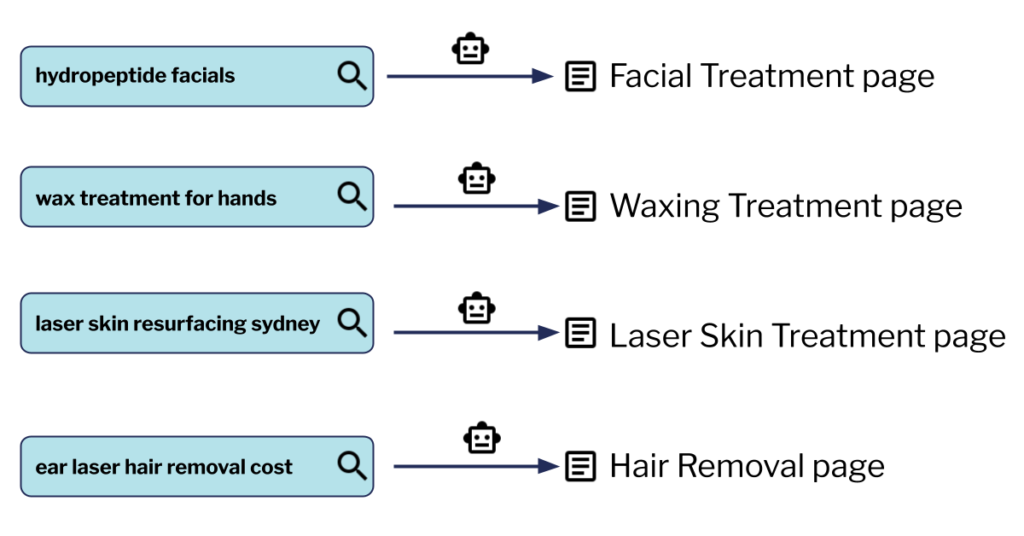
Now the last 4 are specific services so you would want to try rank for people searching for each specific service. Meaning that it may be better to have them on separate pages, to preserve the relationship between a keyword theme like “hair removal” with a specific page like mysite.com/hair-removal. If a search engine has multiple signals that a page is about this keyword theme (ie. you use it in the title, headline, copy etc) it’s more likely to rank it.

Diagram mapping some user searches to pages on the website: 'hydropeptide facials' to the Facial Treatment page, 'wax treatment for hands' to Waxing Treatment page, 'laser skin resurfacing sydney' to Laser Skin Treatment page and 'ear laser hair removal cost' to Hair Removal page

Search engines are of course getting better at understanding your page and they’re very good too, so this is not a hard and fast rule. But it’s usually still easier to rank with dedicated pages if they’re talking about different things. Another advantage is that on a dedicated page you have the space to really craft the message for each specific audience.

This is usually not hard to fix. If the beautician created tiles on the homepage for each of the 4 services linking to the dedicated page for those who want to read, they will have the best of both worlds – a concise homepage that provides a full overview as well as dedicated pages for ranking and landing page/advertising use.

This may be more challenging if your website is a dynamic web app. For example the fictional customtshirtdesigner.com could have pages like Home, My T-shirts, Design and Monetise all on the same URL. There are techniques for making such pages accessible to search engines but they require development. If your website is a web app, you will want to think about which pages should be accessible from day 1, otherwise you could be stuck with the cost of rebuilding parts of the app.

Do I have too few pages?

The consideration here is the same as the one page question.

  • If you can think of a good, relevant potential user search which does not correspond to an obvious page (or there is a page but it doesn’t have that text on it), you may want to create it as a separate page.
  • If you can also think of customised user messaging that would be relevant to people landing on your website from this search (or even browsing to a page with this content once they’re on your website), you may also want that customised user messaging to be on its own page.

Do I have too many pages?

Search engines today increasingly give preference to highly relevant content. Today and going into the future, highly relevant, quality content trumps quantity. As a result, having too many pages can hurt your website. The downsides are:

  • Confusing user experience, as many people do use the URL to work out where in the website they are.
  • Too many pages indexed by search engines which would result in:
    • Search engines crawling your website less and hence your page listings in search results being out of date.
    • Search engines ranking a different page to the one you want because they’re confused.
    • Your overall rankings not being as good because of confusion, if search engines think your large number of pages is because you’re trying to spam them.

The biggest culprit is browse and search pages, especially if you can access items through many different criteria. At worst you can have a system that generates a near-infinite number of URLs, for example this list which you would not want search engines to try to index:

  • mytshirtshop.com/browse/categories/cotton-unisex/?postcode=2000
  • mytshirtshop.com/browse/categories/cotton-unisex/?postcode=2001
  • mytshirtshop.com/browse/categories/cotton-unisex/?postcode=2003

Or an ecommerce store where you can put together different options in different ways to get pages that return the same products

  • mytshirtshop.com/browse/categories/cotton-unisex/
  • mytshirtshop.com/browse/categories/unisex-cotton/

You can also split the pages according to the previous heading’s recommendations but go overboard. For example if you’re a plumber and you have 5 main service pages but also service all 433 suburbs in greater Adelaide, it would be excessive for you to have one page per suburb listed on Google, saying that you service it. Then only 1% of the pages on your website would have substantial unique content and search engines will know this. So you’d want to make sure any automated or dynamic generation of pages generates unique value. For example if you’re a directory website then it may make sense to have 433 pages for all the suburbs since each page will list different products/services on it.

Quick TipHere are the main ways to control the number of pages you have:

  • Not having the bloated pages in the first place (eg. restricting the number of unique URLs that your website can have).
  • Allowing these URLs but asking search engines not to index them (see chapter 18 for more details). For example the plumber may want one page per suburb if they’re running ads to those pages, but they might still be too similar for search engine indexing.
  • Using the canonical tag to tell search engines that different URLs are actually the same page (see chapter 18 for more details).

Do you have a website plan?

You need one. For a small website it can list each page explicitly. For a medium or large website you might need the plan to cover entire categories of pages. For example a food delivery website will typically need to have at least the following pages:

  • Homepage
  • Contact us page
  • Search results page (this would be a template, potentially representing thousands of pages)
  • Restaurant listing/ordering page (this would also be a template)
  • Checkout page
  • Order confirmation page
  • User login page
  • User order history page

Even if you have an existing website that you think works well, you should make a plan for it. This will help clarify your thinking about how the pieces fit together and will probably suggest areas of improvement.

Does each page/section of your website have a clear purpose and CTA?

If you look at the above page listing, every type of page will have a clear purpose and call to action. For the homepage, it would be to explain what the service does and get the user to search. Other pages might have a dual purpose, for example a restaurant page’s purpose would be to showcase the restaurant’s menu, pricing and specials as well as getting people to create an order. It’s all about getting your customers to the things they need, as easily as possible.

Shut Up and Take My Money meme, caption says 'click' instead of 'money'

It’s the same for your own website. Each page or section’s purpose and call to action should be documented in your website plan. If a page is not pulling its weight or does not have a clear purpose doing this exercise will make that clear.

Below is an example website plan for the beautician example earlier in the chapter:

PagePurposeContent to fulfill purposeCall(s) to Action
Home1. Establish credibility
2. Choose treatment type
1. Testimonials
2. 4 treatment tiles
Click a tile
Facial Treatment1. Provide treatment info
2. Choose to book
1. ‘What’s included’ table
2. Award image
Click Book button
Wax TreatmentAs aboveAs aboveAs above
Laser Skin TreatmentAs aboveAs aboveAs above
Hair RemovalAs aboveAs aboveAs above
BookComplete bookingEasy to fill form Logos of payment methodsSubmit form
ThanksPeace of mind Social visitBooking ref number Social logosClick social links

If you haven’t done so already you can create your own website plan. If you have lots of similar pages (eg. a destination page for each major city in Australia), one row would be enough since typically all instances of the page would have the same purpose, content and calls to action.

10. Your navigation and menu are confusing

This chapter will cover:
  • Improving your menu navigation
  • Improving navigation in the main content area: text links, buttons, carousels etc
  • Improving your footer navigation

A navigation menu, as well as any type of website navigation should be:

  • Simple and intuitive (on all devices)
  • Fit your website’s architecture
  • Understandable to the user in terms of what will happen when they click on an element

Now user expectations do evolve over time, so you will need to keep up somewhat. However, the basics of website navigation haven’t changed nearly as much in the last decade as have other website standards. We recommend a more slow and steady approach rather than jumping on the latest interactive widget trends.

The layout of the screen as a whole

  • People hate full screen takeovers that block everything on first visit. I hate it, you hate it, your visitors hate it. And people know this. So if you do a takeover it better be a legal requirement or you offering people something really good (eg. a big discount). But even a great offer still introduces friction, it’s not what people initially clicked through to the website to do. It’s usually better to present it more intelligently, eg. after the user’s interacted with the website a little bit. But as for standard things like “subscribe to our newsletter”, in every test we’ve run it will not collect many emails but will piss off a lot of people. Best to keep the screen unobtrusive and/or incentivise it if you can.
    Screenshot of a book page from AlanBaxterOnline.com with the newsletter popup showing in the bottom right, not blocking the screen.
  • If it’s important for users to have access to the top nav menu, you might want to keep it sticky, meaning that if the user scrolls down it stays at the top of the page. If you have any interactive widgets (eg. click to chat) these can also be sticky at the bottom of the screen. But having both is usually too much on mobile, it just doesn’t leave enough of the screen for your actual website. One solution is to use widgets that are context-dependent. For example a click to call widget should probably not be sticky to the bottom of the screen on desktop.

Your navigation menu

  • It’s now a standard for mobile menus to be a hamburger menu with users clicking an icon like ≡ to open up the menu. In fact, the majority of traffic is from mobile these days for a majority of industries. This leads a lot of website templates to sell themselves as “mobile-first” and keep this hamburger menu even on desktop. We think this is a bad idea for most websites. On desktop, you have the real estate and hiding your menu options behind an extra click will reduce interaction. Track this in your analytics if you’re skeptical (for a deeper dive on this, see chapter 19). Also, even if your website gets more mobile traffic, your desktop traffic likely converts at a higher rate (again check your own analytics to confirm). It’s not that people on desktop don’t know what the ≡ icon does. It’s that they’re always distracted, always going to another tab.
  • For a larger website you may need more than 1 level menu item (ie. sub-items). But if you’re getting to sub-sub-items this may be a sign that the menu needs to be simplified further. Also make sure to check that the user can navigate to the sub-item easily both on desktop and mobile. A surprising number of themes and website frameworks don’t do this properly, so that if a user clicks on a menu item with children instead of expanding the menu it takes them to the page corresponding to the parent item. Meaning they cannot navigate to the sub-item at all.
  • Your menu items don’t need to be grouped under the same hierarchy as your URL folders. For example if your primary menu item is Services which groups sub-items like Steam Cleaning, Office Cleaning and Apartment Cleaning, it’s ok if the actual pages aren’t /services/steam-cleaning, /services/office-cleaning and /services/apartment-cleaning. However if there’s a big disconnect it might be a sign that you need to clean up your website structure.
  • If you have more than a couple of menu items, you should be tracking clicks on the menu into your analytics tool, to determine which items are actually getting used. This always helps with menu refreshes.
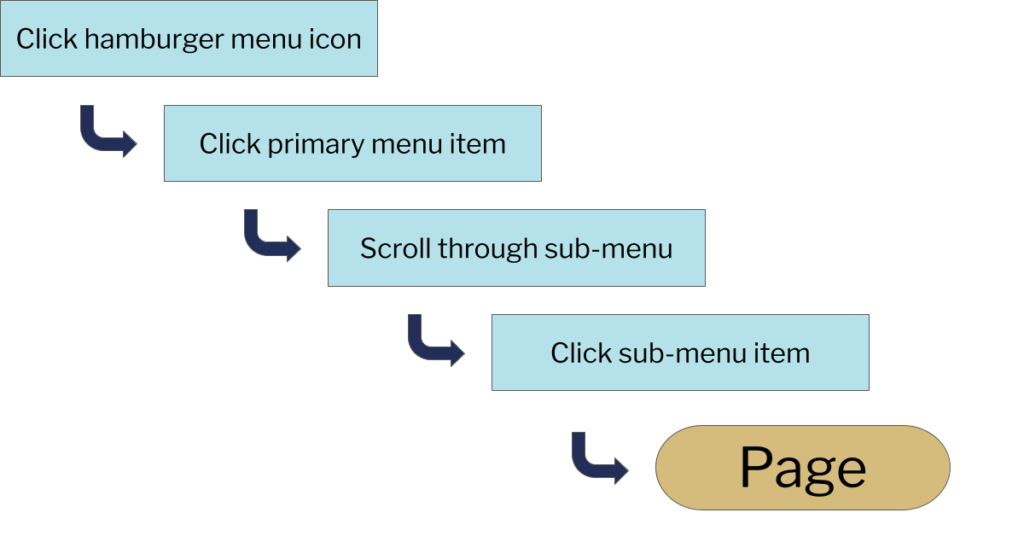
A flowchart for a user needing to go through multiple steps to get to a page: 'Click hamburger menu item' to 'Click primary menu item' to 'Scroll through sub-menu' to 'Click sub-menu item' to 'Page'
  • Yes the world has moved on from text links being blue and underlined, in fact you may be too young to have ever seen websites like this! However many themes today have link styling which is too easy to mistake for body text. A different colour can help but you should check it for contrast, and also upload a screenshot of your website to a colour blindness simulator to see if it’s actually obvious.
  • It’s also quite common to have some links (especially links that point outside your website) open in a new tab. There is some debate about this in the UX community but generally the standard is to keep them in the same window (for the rationale see this article). There are cases where it probably makes sense from a business perspective, but it’s overused and you should be deliberate about it instead of defaulting to it. People know how to open a link in a new tab, that’s why you probably have 10-30 tabs open right now.
Quick TipIf a link goes to a PDF file it’s common courtesy to flag it so people know there’s a download. By editing your CSS/stylesheets (or getting a developer to), you can automatically add an icon at the start/end of all links depending on whether it goes to an external website, a PDF etc, see for example these two Google material icons.

Buttons

  • All things being equal it’s good to have buttons containing actual links, so people can hover over them to see the URL, open in a new tab, copy the link etc. If your website is doing something fancy and interactive your button may not have that. And there might be a good reason for it, but be aware that this can make navigation more confusing.
  • Using icons (even an arrow icon like ►) on buttons, quickly communicates this is a clickable element, something that might be obvious to you but not to your visitors.
  • It’s also good to have a button change visually when a user hovers over it for additional feedback.

Carousels

  • Just like with buttons, it’s very easy to have a carousel that most people don’t realise is clickable.
  • A carousel on the homepage is also a super-popular design pattern. Now it’s fine if you just want to portray some sort of image about your brand. But if it’s meant for action (ie. clicking), in our experience these don’t get a lot of clicks. Which makes sense because most homepages get a lot of different types of people and it’s hard to address all their needs with one carousel. But track this in your analytics.

Breadcrumbs

  • Breadcrumbs are pieces of navigational text usually at the top of the page which show the folders and sub-folders that the user is in to have reached this page and link to them, for example: Home > Asia > Japan > Kanazawa > Taxis
  • They’re pretty straightforward but if you find that the URL structure is very different to the breadcrumbs you want to show (eg. if the URL for the above page is something very different to mysite.com/asia/japan/kanazawa/taxis) this indicates that your URL might need a cleanup.
  • These days giant, busy footers are all the rage, we recommend you stay disciplined. There’s no need to tell your brand’s life story and some contact and social links plus any copyright notices and acknowledgements shouldn’t take up that much room.
  • On some websites you might see some navigation links. These can be useful if they’re top-level or if your website is small. They can also be helpful in pointing crawlers to your key pages. But it’s very easy to go overboard. If you’re that plumber servicing multiple suburbs in Adelaide you should probably NOT have all those links to the suburb pages there, it looks (and is) spammy.
An example of a footer with over-optimised, spammy internal links, eg. 'DC Content & Brand Marketing Firm', 'North Carolina Content & Brand Marketing' and 'DC Internet & Inbound Marketing'
Pick a few important pages on your website and fill out this table:

11. Your homepage is not as good as you think it is

This chapter will cover:
  • Whether your homepage is that important (probably not)
  • How to improve your homepage

Is your homepage actually that important?

A lot of website owners see their homepage as a stand-in for their whole website. And it’s understandable, it may be the single most important page. If you are a small business with a one-page website then it is your whole website. That said, for most websites it’s not actually as important as they think.

The danger of over-valuing your homepage is that it will waste your time: when you improve or refresh your website you will spend a lot of time on the homepage and perhaps not on the pages that need it.

The 3 things you should find out first are:

.
  1. What percentage of your website visitors even visit your homepage at any point?
  2. What percentage of your converting visitors visit your homepage at any point?
  3. How do the 2 metrics compare? If the 2nd percentage is higher, this means your homepage correlates positively with conversion, those who converted are more likely to have visited it than your average visitor. If on the other hand the 1st percentage is higher, this means your homepage correlates negatively with conversion. It doesn’t necessarily mean that your homepage is turning people off converting but it’s a possibility for you to investigate.

When we looked at these metrics for our clients, most clients got under 20% for the first metric and about 20-30% for the second metrics, meaning that visitors were doing just fine taking action without seeing the homepage. The more deep pages you have the lower these metrics will be.

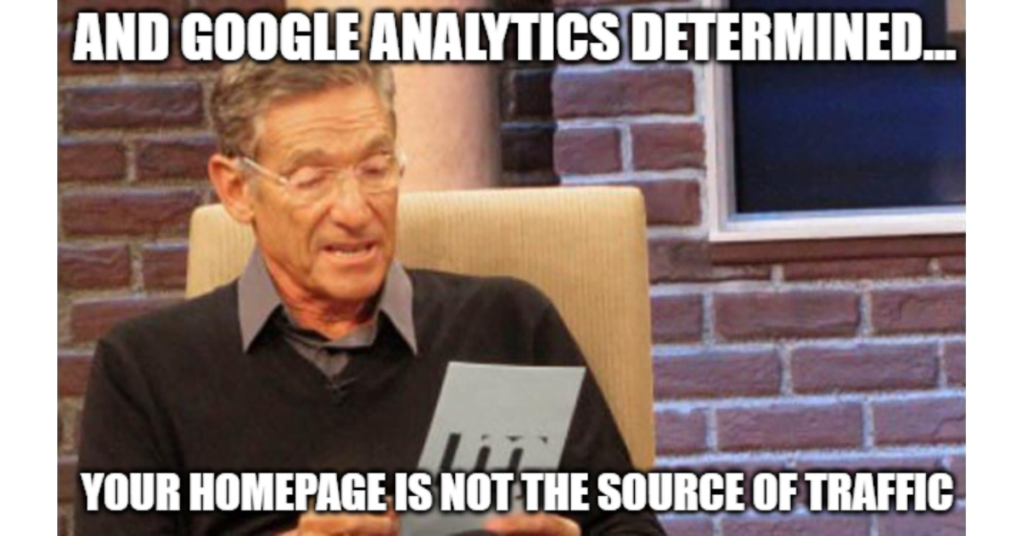
Chart of 10 anonymised websites showing the % of sessions that visit the homepage. The highest one is about 45% followed by 37% and the rest are from 20% all the way down to 5%. You Are Not The Father meme with caption 'And Google Analytics determined...your homepage is not the source of traffic'

Quick TipGiven that the homepage tends to get the lion’s share of attention, testing and refreshes, whenever you do this for the homepage it’s worth making yourself do the same for other deep pages too since those are more likely to be what people see before they convert.

Does your homepage get most people to where they need to be in one click?

A homepage can have several objectives, some of which are more qualitative, such as explaining what your website does well and portraying your organisation or brand in the right way. However for most homepages, you probably have different pages you want to funnel the users to. Whether you can do this in one click can be the sign of a good homepage. Now for some websites this might not be possible (for example in ecommerce you may need to surface a bunch of popular categories straight away) but this is something you want to strive for. For others this is very easy, for example the classic blank page with a search box. If you can get away with that, great.

Are you addressing multiple audiences?

If your website speaks to multiple audiences the homepage is a great place to address this. It can be a simple as a set of links or tiles that say something like “I am a teacher” vs “I am a student”.

Your most loyal visitors are more likely to go to the homepage since they might have your website bookmarked or just type it into the browser’s URL bar. If they’re repeat visitors they are probably coming to do a specific task. If you can surface that for them straight away, you will eliminate clutter and increase conversion.

Quick TipIf your homepage gets enough traffic there’s an opportunity to use tools like Google Optimize to personalise key homepage content based on what the person has previously done on the website (see chapter 19). It can be a work but if the traffic volume is there, the payoff is usually very good.

Fill this out for your homepage:

12. Your website makes it hard for visitors to perform tasks

This chapter will cover:
  • Improving your website forms
  • Improving your website checkout and account creation steps
  • Improving other interactive parts of your website

Even for a small website, usability is extremely important. If you’ve ever seen enough qualitative feedback or quantitative data on how people use actual websites you’ll see that nothing is too obvious that it doesn’t need to be spelled out and nothing is so simple that everyone will figure it out. Some people are not tech-savvy and even those that are tend to often be distracted. Meaning no matter who you’re targeting, unless your website is an online graded exam you’re not reaching people in their highest level of concentration.

Usability can mean the difference between a conversion rate of 10% and 0%. There are many aspects to usability, we’ll cover the top few. Also see chapter 10 for navigation, since that also forms a large part of it.

Forms

A good form strikes a balance between the information you’re trying to gather and maintaining a quick and easy experience by the user. You can think of it as a tug of war. From the product or sales side, you might want as many form fields as possible to gather good data and to be able to serve the user. From the marketing side, you might want as few fields as possible so that people actually complete the damn thing. Here are some ways to strike the balance.

  • For each field, ask yourself what would happen if you didn’t ask for this information at this step? For example if a lead form contains a phone number field but the user goes into an email outreach system, having the phone number there is probably just reducing conversion rates.
  • On the other hand, you might want to reduce the conversion rate if you’re getting too many form submissions that are low quality, so there can be a case for adding fields to filter out the more casual users. Either way you should be clear with what you’re doing, every new field will generally improve submission quality and reduce the conversion rate.
    Chart showing that as the number of fields increases the conversion rate will decrease
  • When a user submits a form, they’ve already spent time on it so it creates a lot of friction to be sent back to the form to add fields. Make it clear which fields are required and which are optional. Yes people generally understand that an asterisk (*) next to a field means it’s required but being more explicit than this is better.
  • It’s also good to provide feedback about where in the form the user is on, for example by highlighting the active field slightly. This means validating fields as users complete them.
  • Modern browsers are also much better at validating fields as the user types. For example it’s much better to mark up a phone field to only allow users to type in an Australian mobile in the format 0000-000-000 (yes it is possible!) than to let the user submit the form and have it knocked back.

It’s also important to consider the context and assumptions around some of the fields you might be asking for. For example

  • Do you really need to collect gender from the user? If you do, just having Male/Female will not do; you need to think harder about this. If this makes you think it’s too much work and you can drop this field altogether that might be a sign that it’s best to do this.
  • Same for titles; just having Mr, Miss, Ms is not appropriate and will alienate some people.
  • What about user location? Even if you generally serve domestic customers, think about other cases. Someone might be overseas, or someone overseas might be buying a gift for someone in your local area.
  • Names are also notoriously difficult to get right. If you make first name and surname compulsory this assumes that all people have 2 names (not true) and that they have a surname (not true). Check out the timeless article Falsehoods Programmers Believe About Names.
Screenshot of an I Wayan Pedjen trying to sign up for Facebook, putting this into the Name field as the most appropriate one and being rejected for not filling out the compulsory Surname field.

Account creation/management

  • The most important question is whether account creation is even needed. It’s now much less common for ecommerce platforms to require registration (with login and password) in order to buy something but it does happen. If you do this it would ideally be at the end and incentivised by you making it clear why someone would do this. For most ecommerce websites it’s not something to put front and centre.
  • If you do have a login or account creation process though, consider adding single sign-on (SSO) options where people can create an account using their Google, Microsoft, Facebook etc. logins. Usually this can be done with just 1 or 2 clicks by the user now which is much better usability than most signup/login forms (although you do need to consider the privacy implications). And if you just need someone’s email address you may not need to connect further data. Just make sure you still offer a traditional signup/login option (username and password) for those who aren’t on social media.
Quick TipIf your visitor needs to create a password, make sure that the required format (eg. 8-32 characters with at least 1 letter, number and symbol) are clear upfront and if the user is about to enter the wrong password that this stops the form submitting. It’s very annoying to submit the whole form only to have the password knocked back and can result in someone leaving your website altogether.

Checkouts

  • How many times have you gone through the whole process only to abandon because the shipping fees were much higher than you expected/were prepared to pay? In those cases it’s best to have these upfront, eg. a shipping calculator on the product page. However, given that people are psychologically allergic to shipping fees, by incorporating the price of shipping into the product itself you may see a higher conversion rate anyway.
  • Similarly, you may need to recoup some credit card/PayPal fees in your checkout but by golly you had better make sure that’s very clear on the page before they complete their payment. If someone’s buying say a laptop and the credit card fee will add around $20 to their purchase that will be hard for your brand to recover from.
  • It’s also useful to let people adjust products right on the checkout page itself, which can lead to some upsells.

Other content types

  • People are more used to downloading PDFs and other files when clicking on a link, but it’s still good practice to warn them especially since on a phone it may take them out of their browser automatically.
  • Your favourite social sharing widget might be nice but people browsing on their phones generally use their phone’s native share functionality. And yes they sometimes need a nudge. But many social widgets are very aggressive, for example being sticky at the bottom of the screen. Unless you’re primarily a content website, this kind of real estate is best reserved for meatier calls to action like chat, call, get a quote or enquire.
Screenshot of a CTA section below an article with a row of share buttons for Facebook, Twitter, LinkedIn, Pinterest, Whatsapp, Email and Other followed by a row of article tags and then another row of wider buttons with actions Share (Facebook), Tweet (Twitter), Share (LinkedIn), Send (Email), Pin (Pinterest) and Send (WhatsApp)

Pick any form on your website and fill this out for each field:

13. Your don’t know your website visitors that well (part 1)

This chapter will cover:
  • Why you need a general analytics tool
  • The need to plan for an analytics setup
  • Avoiding common pitfalls when interpreting your reports

Why do you need a general analytics tool?

Most platforms have their own reporting, which often comes out of the box. For example:

It’s tempting to rely on those platforms and for some questions you probably need to. However for almost all websites it’s definitely worth investing in a holistic analytics tool like Google Analytics, Matomo, Clicky, Adobe Analytics and so on. Here’s why:

1. Most of the individual platform tools are only concerned with their own area of purview. This makes sense but can potentially be misleading. Maybe most of your customers click on both your Google and Facebook ads before they convert. This means each individual advertising tool would report a conversion for each person and you would be double-counting or at least have a misconception about how these contribute to the conversion path. (For example if you know people typically click on the Facebook ad first this might impact your website and ad strategy.)

Gathering this data in one place lets you reduce the double-up and start comparing apples with apples.

I Too Like To Live Dangerously meme with caption 'Measuring meaningless metrics: I too like to live dangerously'

2. Most non-holistic tools don’t get granular enough for you to get insights easily. The simplest case is a single metric, for example the conversion rate of your newsletter popup. The platform’s analytics tells you it has a 0.5% conversion rate (or out of every 200 people who saw it, 1 completed it). But so what? Does this tell you how to improve the form? Are people starting to fill out the popup and then changing their mind or are they closing it straight away? Does it differ based on traffic source? Would you even expect a first-time visitor who came from Google search results to subscribe to your newsletter and if not would the conversion rate be very different for repeat, non-Google visitors?

Most tools do let you break your data down. For example an email tool will typically have breakdowns by individual email, by user segment etc. But it’s rarely got the levels of freedom that a generic analytics tool will have. A key task for improving your website is to ask very specific questions about your user behaviour, tailored to your website only, getting answers and making improvements. For this, a generic analytics tool will really help out.

Setting up a generic analytics tool is rarely instant!

Let’s say you’ve decided to use a generic analytics tool. Great. It doesn’t know about your business or what’s relevant. Most of the time it gets you to add a basic tracking code to the website but that’s rarely going to give you the most meaningful data for your website. We’ll use Google Analytics as an example since most of the time that’s what people choose. Here’s a summary of what is measured with the new default tracking code for Google Analytics 4:

  • User-level data for device, location, traffic source, visit count.
  • Page-level data for URL, page title.
  • Views of a page (pageviews).
  • Scrolls to 90% of the page.
  • Clicks on outbound links or file links (with the relevant data).
  • Website searches (with the search keywords).
  • Interactions with embedded YouTube videos (with the relevant data).

This is a lot more than the old version of Google Analytics but a lot of the most important pieces still need setting up. For example:

  • Labelling inbound traffic correctly in reports through campaign tagging.
  • Demographic data.
  • Events corresponding to lead-like actions (eg. clicking on an email or call link).
  • Events corresponding to lead generation (eg. completion of contact or newsletter forms).
  • Events corresponding to ecommerce actions (eg. purchase/donate).
  • Any custom data such as your own CRM ID (for measuring offline conversions).

To use an analytics tool, you need to know what’s converting and what’s not and for this you will need to track events that correspond to these conversions. The above is not an exhaustive list but is an overview in ascending difficulty. Many websites might not need #5 but if you’re not tracking #3 and #4 you won’t know what’s happening on your website.

Quick TipYou are likely going to need someone’s help in setting this up in a way that benefits your business most, for which see chapter 8 about getting technical assistance.

Most people draw the wrong conclusions from their analytics data

Whatever your setup, it’s easy to get misled by reports. Here are some things we see leading people astray:

  • Looking for complete accuracy rather than trends: No analytics tool will perfectly capture each interaction. Some people will have ad blockers that might prevent tags from firing, others might close the page before a thankyou message loads and so on. Yes you would usually want your analytics data to be around 90% of your real numbers (eg. from your payments processor). If it’s something like 50% that’s a problem. But don’t aim for 100%, it won’t happen and it will waste valuable time that you could spend looking at existing data. Think of your analytics reports as a useful sample of your website traffic. What’s it telling you?
  • Top/popular pages: This does give you a good top-line overview of your content but a lot of the times we see it framed as a question of user choice, ie. “which pages on my website are people choosing to go to?”. But this merges 2 separate scenarios. If that page was a landing page this means that someone clicked through to it from outside your website, in which case the choice of page has more to do with your marketing than user choice (of course people do share links themselves and for search keywords user intent is still primary, but most of the time the page is selected). If on the other hand the page was not a landing page, the user must have navigated to it from a previous page of your website. In which case, that often has more to do with your nav menu, how the previous page presented links/buttons etc, and still might not be about user choice. The main question a top pages report should prompt is “can I shape the user flow better?”.
  • Bounce rate: People obsess about bounce rate which is why we were glad to see it go in the latest iteration of Google Analytics (GA4). Most websites have just the basic tracking code, which means something counts as a bounce if someone visited one page and did not visit another. Did they read it with enthrallment for 15 minutes? Did they get what they need from that page (eg. a contact us page) and that’s why they left? Without more context, you don’t know. Certainly if a key page has a very high bounce rate that’s a reason to investigate but by itself it doesn’t mean much. A better question is: “what is the key purpose of this page and what percentage of people who see it end up fulfilling it”?
  • Average time on page / average session duration etc: This metric is difficult to measure and analytics tools often have a hard time coming up with something meaningful. For example if a tab is open for 2 hours does this mean a user was focussed on your website for 2 hours? Almost certainly not. The best measure is probably the amount of time that your website was in focus, but few tools measure this (Google Analytics 4 does) and this is different to older, less meaningful metrics like “time on page”.
  • Exit pages / exit rates: Another thing that’s often measured but easy to blow out of proportion. Unless you’ve trapped a visitor inside your website they will eventually leave. The number of exits is equal to the number of entries and the vast majority of the time your top exit pages will be your top entry pages too. Again, not that you can’t draw insights from these but we’d recommend you put this type of analysis towards the bottom of your list.
  • Trendlines: Comparing performance can be very useful. Did we get more traffic this week than last week? Did we get more conversions last quarter compared to the same quarter last year? However, be wary of being put into a position where this sets up an expectation of constant growth and improvement. That’s not how any website works, even if everything’s going right. With this expectation, it becomes tempting to try to find reasons for changes even in statistical noise. The end result can be a sad state of constantly reading tea leaves, being institutionally expected to take credit for any positive change and find the cause/blame for every negative change.
    Chart showing conversions going up and down each month randomly with no overall trendline across months. Every time conversions go up is labelled 'We're great at our job!'. Every time conversions go down is labelled 'What did we do wrong?'.

Getting to the right conclusions is harder, but is possible

Like most things to do with websites, there’s no end to how sophisticated you can get but below is a framework that we think can be used for most websites and skill levels.

  • Define your goals/KPIs: What are the main things you want to achieve? You should be tracking this to score your traffic across each objective. These objectives can be at website level (eg. complete the enquiry form) or at page level (for the homepage, click the “Enquire” button).
  • Look at the overall metrics: For example, at the website level you might want to see how many users/visitors you had, how many times the contact form was completed and the conversion rate (ie. one divided by the other). You should also check trendlines over time but the most important thing is to not stop here.
  • Look at breakdowns: Even if your website has just one objective (eg. contact form), you can still see a breakdown of the form completion rate by factors such as: (A) device category (B) traffic source/channel (C) landing page (D) geographic location (E) first visit vs repeat visit.
  • Identify outliers: Once you see your overall success metrics broken out like that, you will see outliers. Not all landing pages or channels or keywords will perform the same. Identify those that perform much better/worse than the site average. Note that for a low traffic website you’ll need to be careful about making inferences from too small a dataset. You will want to focus on outliers with rows that represent your biggest share of traffic first.
  • Form a hypothesis: Let’s say when you break down by device type you notice that mobile traffic completes the contact form at a higher rate than desktop. There might be lots of explanations for this, you will need to add your own context. In this case I’d check the page on desktop and mobile; maybe on desktop the contact form is in a 2nd column that’s not as prominent.
  • Test the hypothesis: If the hypothesis is correct then updating the form on desktop would fix it. In chapter 19 we’ll look at A/B testing but in this case you could potentially just make the change if you think the risk of making things worse is low. The main part is to be accountable to yourself. You are expecting a specific effect: an increase in conversion rate on desktop devices only, within a specific timeframe. Did it happen or not?
  • Repeat: it never stops!
Scarface meme with caption 'Just when I thought I was out, they pull me back in!'

14. Your integration with other websites is not as good as you think it is

This chapter will cover:
  • The types of 3rd party services you might be using for your website
  • The ways to integrate them with your website
  • The options you have to control the look-and-feel as well as the data from these services.

While it’s still viable for personal websites and blogs, very few business/organisational websites these days are standalone, not integrating with any services. Here are some third parties that your website may integrate with.

Type of toolExamples
Payment processorsPayPal and Afterpay
Donation platformsRaisely
Event management platformsEventbrite and Humanitix
Experience booking platformsRezdy and Fareharbor
Form buildersTypeform and Hubspot
Landing page buildersClickFunnels and Instapage
Media playersYouTube, Vimeo and Soundcloud
Chat widgetsLiveChat and Tawk
Popup widgetsSumo

There’s nothing wrong with using third parties, but you need to be aware of a couple of things:

  • Will the branding experience be consistent for my visitors?
  • Is this platform, which I may not have direct control over, easy to use?
  • Will I be able to track user actions on this platform? (Very important if this platform is where your website conversions happen, eg. payment processor, chat widget or form builder).

For a surprising number of platforms the answer to some or all of these questions is “no” and we’ve seen cases where websites have committed to third parties that have completely limited their business growth without doing the research.

To do the research, you should first find out how exactly a platform integrates with your own website.

Quick TipIf you take away nothing else from this chapter, it’s to make sure that you will be able to have access to the 3rd party platform styling and data before you commit to the platform. If you think you don’t need these now, consider whether you’re likely to need them in 6-12 months, if so you may need to change again which can cost a lot of time and money.

Below are the main options:

The platform adds HTML directly to your website

This is usually the best case scenario, this means that the platform’s output sits on your actual website. For example, a popup created by Sumo is actually on your page. This means you can do the following to it (possibly using a developer, but at least it’s feasible):

  • Track it
  • Modify the styling and layout

There may still be some functionality you may be unable to modify either on your page or on the platform but that’s a question of how suitable it is for you in the first place.

The platform is added to your website through an iframe

An iframe is essentially a third party website being embedded into yours. For security reasons your browser treats these as 2 separate websites joining up into one page:

Diagram with iframe analogy. There's a browser window for mysite.com with a hole in it. There's a second window for youtube.com that sits under it in the 3rd dimension fitting over the hole. Someone looking from the top will see both as a single window.

This means that by default, the parent page (ie. your website) cannot have access to the iframe itself. Meaning you cannot:

  • Track user interactions inside the iframe
  • Modify the styling

Now there are some ways around this but they require dev work and not all platforms will do this:

  • If a platform allows you to add your own Javascript to the iframe, the iframe can send a message back up to your website (eg. that a form has been submitted). An example of this case is Paperform.
  • If a platform has a Javascript API, it might already be doing this in which case your website just needs to listen to the appropriate message. An example of this case is the YouTube player.

However a lot of platforms don’t allow any of this, so be aware before you commit to a platform where conversions are occurring!

The platform requires the user going to the platform’s own domain

Here, you have the least control and the least visibility on what your visitors do.

If the platform is nice enough, you can add your own analytics code to those pages so that your reports consider them as if they were part of your website. However many platforms don’t do this and for many analytics tools you will need to set up something called cross domain tracking to ensure that the user is tracked properly as they travel across domains. (Note that if the user goes to a subdomain of your website such as store.yoursite.com.au, most of these issues will disappear.)

If this isn’t available, there is another option. You can have the user returned back to your website when they’re finished (for example Paypal has an auto-return feature). This is good for branding too, you would want a custom thankyou page that can direct people to do other things (eg. sign up to a discounts newsletter). But then you probably still have to do some analytics configuration and add those third parties to an exclusion list (in Google Analytics it’s called referrer exclusion) so that it doesn’t treat that traffic as if it’s just arriving to your website. Otherwise it will show that paypal.com is the marketing channel that drove all the revenue.

A flowchart for cross-domain options. One flow is moving between domains: mywebsite1.com to mywebsite2.com (with cookies passed) then to mywebsite2.com/thanks. Another flow is returning a user back: mysite.com/checkout to paypal.com to mysite.com/thanks (with the original cookie from step 1 being used at this step).

If this all sounds complicated, it is! For some clients, dealing with 3rd party services causes about 60% of headaches. But if this service is essential to your business operation (eg. Paypal), not implementing these things would simply mean you don’t have the data you need about conversions to grow your business in a smart way.

Fill this out for third party integrations you have:

15. Your website is much, much slower than you think it is

This chapter will cover:
  • The importance of website speed
  • How to test your website speed
  • Some options for improving speed

Yes, speed is extremely important

Browsers protest meme, with browsers chanting and Internet Explorer lagging behind the chant significantly

In addition to just being bad branding, a slow website really does impact conversion. How often have you left a website because it was taking too long to load? There are lots of studies out there and most show that once your website takes more than 3.5 seconds to load, your conversion rate drops to less than half. Conversely, if you get page load to 3.5 seconds or less, you could more than double the amount of conversions it generates.

We can’t think of any other digital marketing project with such a high payoff.

Testing your website loading speed

There are 2 main methods:

You’d want to use a combination of both, unless you’re just launching or your website is low-traffic in which case #2 won’t help much.

Screenshot of australia.gov.au homepage alongside one of the page's results in Google's pagespeed scanner: 44/100 on mobile.

Website speed is also a factor in search engine rankings

The largest initiative is the Core Web Vitals initiative, spear-headed by Google. It doesn’t only look at speed; as of 2021, the main signals evaluated are:

  • How long does it take the largest element on the screen to load?
  • How much does the screen jump around as your page loads?
  • How long does it take between a user interacting with your website (eg. clicking on a link or form element) before it responds?

We’ll now go over some things that are generally a good idea for most websites. The list isn’t complete and the scanning tools will provide a lot of technical details but it can be hard to make sense of everything without more context.

Hosting

Your quality of hosting (including hosting plan) and the host’s location can make a huge difference. If your host is slow then getting everything else right might not make much difference. If you’re using a CMS with fully managed hosting (eg. Squarespace, Shopify, Wix) then many some of the tips below may not be necessary as the CMS may do it for you. However there’s a chance that you may still need some add-ons, and if you are self-hosting you should consider all of these points about your hosting setup:

  • Have an adequate plan: If you are on a shared hosting plan, once your website starts scaling in demand, you’ll find that the speed to consistently be an issue. Upgrade to a VPS or other higher-tier plan.
  • Use a Content Delivery Network (CDN): This is a service which acts as a layer between your host and the internet to optimise the delivery of files to the user’s browser. For more information, see this article by Cloudflare, a CDN with a free-forever plan which may be suitable for a lot of smaller websites.
  • Don’t double up: Remember to check what speed optimisations your host and CDN implement automatically, because then you don’t need to implement them yourself as well. Not only would it be a waste of time, but doubling up can actually make your website slower.

Images

Quick TipBloated images is one of the most common reasons for websites slowing down and this is something you can often fix at scale without a lot of tech knowledge.

Many images are too large for what you need, meaning wasted bandwidth. It’s common these days for a standard image from your phone (ie. not a professional device) to be around 10MB. To put this into context, that one single image is 4 times larger than the ABC’s entire homepage, which has dozens of articles (with images) at any time! Often we’d see such an image then used in something like a thumbnail where you can get the same quality for 50kB or 1/1000th of the size. Most professional images shouldn’t be used on websites without size reduction and/or optimisation.

Some tips on image optimisation:

  • There are a lot of tools that optimise images at the point of upload and some CMSes will do it automatically. But even resizing them yourself can help. The most common desktop screen width in Australia is just under 2000 pixels. So even if you have a hero image that spans the whole screen it almost never needs to be more than 2000 pixels wide.
  • There are also compression algorithms that will reduce the quality of an image very slightly but save a lot on image size. For example, even saving a JPG file in an image processing app but reducing the quality slightly will often halve the file size (or better).
  • Modern browsers let you specify multiple versions of the same image and will load the most appropriate one (eg. on mobile there’s no reason to even try to download the largest version of the image). This is a huge saving so it’s worth making sure your CMS is pre-rendering multiple image sizes.

Your website code

We’ll try not to get too technical but some basics will help in clarifying how your website’s code affects website speed. When a user visits a page, what they’re doing is requesting an HTML document (which is your page). This document then refers to other files: images, Javascript files, third party plugins etc. The browser then must download all of those before the page finishes rendering.

  • The first step to a fast website is a clean and concise initial HTML file. Unfortunately, many fancy, intuitive and drag-and-drop website builders produce bloated code. Sometimes changing to a different page builder can drop your HTML file size significantly. See chapter 5 for more about website theme choice.
  • Because every external request requires a separate download, this means every image, video, widget, tracking code etc will add to your page load speed. There’s a lot of advice out there around this that tries to be definitive. For example “your WordPress website should never have more than X plugins”. We disagree with this approach: an optimised WordPress website can have 30 plugins and still be 10 times faster than an unoptimised website with 3 plugins. And if you delete most features in the name of website speed, you might end up with one sorry website. The main thing to be aware of is that every feature and third party service comes at a performance cost. So it should be providing a benefit to your website.
  • This means if you’re not using a feature you should definitely delete it. If a feature (say a social share plugin) is not being used by your visitors enough, it should go too, or at least be reworked. If you don’t know which features get a lot of use, that’s a great reason to update your analytics implementation.
  • The final thing to be aware of is Javascript. Javascript is a programming language, and is the main way that websites become interactive. Chances are, your website is already stuffed full of Javascript. But interactivity comes at a performance cost too. If the code isn’t written well, or is trying to do something fancy, the browser will need to devote a lot of resources to this, often at the expense of loading the rest of the page. In extreme cases this can even crash the browser! The quality of the code depends on the party making it and how much testing is done. An optimal plugin will have minimal code that’s deployed only on pages where it’s needed. If your plugin or widget is bloated (eg. renders code on every page even one that doesn’t have the widget!) there are almost always better alternatives.
  • You can also defer Javascript, which tells the browser to only start worrying about it after the page has finished loading. Most interactions that might need Javascript (eg. users filling out a form) won’t start until way after the page loads so not delaying the page to load this code is perfectly fine.
Quick TipMost website speed scans will tell you which specific pieces of Javascript are causing the most overhead which can help you decide if it’s worth the bloat. It’s not the size of the base code either: sometimes a single line of code (provided by say an ad network) can result in a substantial page slowdown.

Caching

When someone visits your website, usually the following steps happen:

  • Step 1: Your CMS performs multiple database lookups (based on things like which URL was requested) to dynamically pull together the HTML for the page. This is because most websites are not stored in direct HTML files but in databases, with different tables for, say, your header, footer, sidebar, main content, categories, tags etc.
  • Step 2: This HTML content is then sent down the internet’s vast infrastructure, to make its way (often around the world) to the user’s browser.
  • Step 3: The user’s browser then requests a bunch of extra resources (eg. images) in which case step 2 happens again.
Diagram of a visitor's browser talking to the server, illustrating the above points visually

This can be a very inefficient process: often your website is built on the fly for each new user and all the resources keep getting computed and sent over and over again. Caching tries to shortcut this where possible by saving a copy.

  • To speed up step 1, your server can pre-compute the HTML for each page so that the file is ready to go as soon as it’s requested, no database lookups needed. This may not work for logged-in users or pages where the content is genuinely personalised but for most public pages it’s a great idea.
  • To speed up step 2, a Content Delivery Network (CDN) can store common files (ones which are requested a lot from your website) on their own servers which are usually much closer to the user than the server which actually hosts your website.
  • To speed up step 3, when a user’s browser requests a resource (eg. an image), your server’s response can tell the browser to keep a copy of this file on the user’s device and next time just fetch it from there. This won’t save much time for someone’s first visit but will speed up returning visits by a lot.

Other tips for website speed improvement

  • Lazy Loading is when certain elements (usually bulky items like images/videos that are below the fold) are not actually loaded until the user starts scrolling down to bring them into view. Otherwise the normal procedure is to fetch everything, even for a giant page with lots of items below the fold that don’t even get shown straight away.
  • Page Prefetching is when the browser starts downloading the next page when you mouse over a link, or click it. Otherwise the normal procedure is for the browser to only request the page when the URL changes in the user’s browser. An even more aggressive approach is to pre-fetch a bunch of links that the user is likely to click on next during idle time. But then you should be aware of not wasting the user’s internet bandwidth: if they’re not on wifi and your page links to 20 sub-pages each 3MB in size then this would quickly chew up your user’s data.
Kianu Reeves Whoa meme with caption 'Website is slow // has 40 unoptimised WordPress plugins'

You probably won’t need all of these but with a lot of website platforms if your website isn’t using at least some combination of the above you are likely to get a speed score of less than 40/100.

16. Your website probably turns away visitors with accessibility needs

This chapter will cover:
  • Why you need to consider accessibility
  • Some starting points for optimising text, rich media and plugins

Accessibility is making sure that your website is as usable as possible for visitors that have a disability.

Quick TipYou might have a legal obligation in your jurisdiction to cater for some types of disabilities on your website. However it’s also estimated that 15-25% of your visitors will have a disability of some sort. So even if you just care about Machiavellian reasons, it’s worth paying attention to accessibility as it will improve your conversion rate and have a tremendous direct benefit.

It’s quite common for accessibility to be an afterthought, however a great website will be accessible as part of its core design. This is why if the recommendations in the above chapters are followed (especially around website structure, navigation and usability), chances are your website will already be fairly accessible. Below is just a list of some other considerations that have not yet come up in any of the chapters. It is by no means definitive and we recommend looking at a larger primer or even at an authoritative source, such as the W3C quick reference for Web Content Accessibility Guidelines. For Australia specifically, equal access is required by the Disability Discrimination Act 1995, and you can find a lot of useful information about how this applies to website usability on this page.

Website text

  • Make sure text is text: When your website presents text, is it actually in legible text? A lot of websites hide functional text inside images (see below) and other non-text items, which would make them non-accessible to people with screen readers.
  • Use contrasting colours: Many popular website themes present main text that’s almost light grey on a default background that’s white. This might be an attempt to not be too “in your face” but a lot of people will not easily be able to see it.
  • Size your text appropriately: 20 years ago it would have been fine for a website to have the same text size as the PDF of an academic paper, but expectations have changed. Although there aren’t a lot of definitive studies, what’s out there does suggest that increasing font size to something more readable improves conversion. Either way, a font that’s too small will decrease visitor comprehension.

Use of a keyboard

  • How much of your website can be used by someone with just a keyboard? If the answer is everything then you’re probably in good shape. If not you are presenting barriers to people whose setup would only have a key-based input device.
  • Nav menus and forms are the main things to pay attention to. Website code standards do specify how to make it possible to navigate through them item-by-item or field-by-field but a lot of popular themes and CMSes may not have that functionality enabled.
Quick TipTo test your website, visit any page and keep pressing the tab key. If one by one, the menu items and then form fields become focussed, and if there is some visual feedback about this (eg. the item being highlighted), then the basics are probably covered. If not, you will definitely want to fix this. Most CMSes will have themes or plugins for this functionality so you should be able to get away without custom coding.

Media

  • Add ALT text to images: This is an HTML property of an image which describes what the image has. These are used by screen readers but also help your images rank for relevant image searches. Unless the image is purely decorative, every image should have one.
  • Caption your videos: whether you’re using a 3rd party solution (eg. embedded YouTube or Vimeo players) or your own, they should be captioned and the captions should be in actual caption files which make them readable. Many times a video would provide captions but hard-coded into the video, which is similar to putting text inside an image in terms of readability.

Personalisation and Plugins

  • Depending on the website you may want to let users make personalisations about things like font size, font and day/night mode on their own.
  • There are plenty of plugins that can help with this, and many of them like AccessiBe also automatically scan for (or even fix) other accessibility issues.

17. Your website breaks more laws than you think it does

This chapter will cover the starting points of checking our your website’s compliance with these laws:
  • Liability/damages
  • Copyright
  • Privacy
  • Consumer protection

We are not lawyers! None of this is legal advice, and if you’re running anything beyond a personal blog, you will probably want to get some. The following is just a quick list of some of the items that may be relevant to your website. These are by no means comprehensive but they are some of the questions you may want to ask yourself and/or a legal advisor.

Quick TipThere are some services like Iubenda or Terms & Conditions Generator, which are designed to generate legal pages for your website based on some questions you answer. Although these might not be super-tailored for your situation or region, if you are unable to get actual legal advice, using one of them (after reading the considerations below) is going to be much better than making up your policy wording wholesale.
  • See chapter 16 for the details. Are any levels of accessibility a legal obligation in my country or jurisdiction? Am I in breach here?

Liability

  • What happens in the case of a data breach (see chapter 7)? What if someone hacks into my website and steals user passwords, financial, personal or medical information? What if this was because my website didn’t take precautions? For example TalkTalk had racked up £30 million of damages due to a fairly basic hack which exploited a vulnerability that would have been closed with basic security measures.
  • If members of the public can use my website to generate content, what happens if that content is spam, harassment, libelous? Can users send emails or messages?
  • Note that like most of the points in this chapter this goes beyond legal obligation and into running an ethical website and/or creating an action plan. And you need an action plan. For example, even something simple like letting users choose their public user name has consequences. How long until someone chooses a racial slur for their username? In fact, a good question to ask is how might the multitude of hate groups that exist use my website to promote their message and what will I do now to stop this? The chances of this happening are much higher than you think.
  • What happens if someone takes something they might construe as advice from my website and suffers damages?
  • What if they just believe that they were harmed due to the service that my website is meant to provide?
  • Do I have the proper licensing to use all the text, images, audio and video that I use on my website? Plenty of people think a Google image search is the substitute for the legal sourcing of images for your website for example. There are plenty of stock photo libraries (eg. Unsplash) that you can use, some of which are even free.
  • Have I implemented the proper attribution to all the works I should reference (eg. mentioning the creator or linking to them)? Some free licensing schemes like Creative Commons may still require it, and certain forms of paid licensing might require it as well.

Privacy

  • What are my obligations to my visitors? Does this differ depending on which region the visitor is in? For example, a lot of people in Australia might not take the EU’s GDPR legislation into account, but it would apply to anyone browsing your website from the EU. Meaning that if you haven’t gotten the necessary GDPR policies in place, your business may in theory be liable.
  • Do I need to seek explicit consent for certain activities (eg. subscribing someone to a newsletter) and implicit consent for others (eg. turning on Google Analytics for a user’s visit)?
  • Where I need explicit consent, is this how I’ve actually implemented things? If we had $1 for every website which has a popup saying “we need your consent to use cookies” but also drops the cookies at the same time (instead of waiting for the consent)…
  • Conversely are any consent asks a double-up of an existing consent ask? A common example is subscribing to a newsletter and making people tick a box saying they consent to you using the email address to subscribe to the newsletter. Why else would they be putting their email into the form?
  • Do I need to use a Consent Management Platform (CMP) such as Cookiebot to actually notify people, store provable consent and make sure things are only done once you have the relevant consent?
  • Does my privacy policy accurately describe what happens? Plenty of websites have very generic policies which may have nothing to do with what user data is actually gathered once you’ve plugged in the 5-10 third party vendors that you may be using
  • Does my website (or any related service) store customer data in a country where I may not be allowed to store this data?
  • Does my privacy policy make the types of disclosures that some of the tools I’m using (eg. Google Analytics, Google Ads, Facebook Ads, Hubspot etc) require me to disclose?

Consumer protection

  • If I have any forms with a tickbox to opt into an additional thing (eg. an ecommerce payment form with a tickbox to subscribe to the newsletter), am I preticking it and if so is this legal in my country?
  • If someone subscribes do I need to implement double-opt-in before adding them to my database? That is, do I need them to click on a confirmation email link to prove that they subscribed themselves to my list and not their ex?
  • If I am selling products or services directly on my website, do I have clearly stated payment, refund and other T&C info on the website? Is it easy to find? Would anyone be surprised by a policy after having made a purchase? Additionally, depending on what types of marketing channels you employ, some like Google Ads and Facebook require certain policies be in place as part of their terms and conditions
  • If my prices are dynamic is the way I’m calculating them considered anti-competitive (eg. showing higher prices to returning visitors)?

This is not a comprehensive list by any means but hopefully it will get you brainstorming.

18. Your on-site SEO is not as good as you think it is

This chapter will cover:
  • What are some realistic expectations for your SEO?
  • Adding/removing pages to a search engine’s index
  • Writing SEO-friendly copy and metadata for your pages
  • Structured data

More and more people have websites which means they are familiar with some concepts in search engine optimisation (SEO). And there are lots of great resources and tools out there catering to all sorts of levels of experience, many free. What’s probably more difficult is putting things into context with respect to what’s likely to be of benefit to you.

Overall, there is no shortcut. Not anymore. And as tempting as it can be to reply to the hundreds of offers in your spam folder to solve your SEO problems overnight, in most cases, you really are the best person to lead your SEO strategies.

Sad/Waiting Escobar meme with caption 'waiting for the traffic from my $100 package'

How much success can you expect from organic traffic?

The answer depends wildly on what your website does as well as the competitive landscape. It also depends a lot on your marketing plan, which is beyond the scope of this book. However, you will likely fall into one of these categories:

  • Your primary marketing will be word of mouth and other close networks of people. In this case your main SEO concern is making sure that people who are searching for you by name find you. In which case your choice of a memorable and appropriate domain name (chapter 3) may be more important than anything in this chapter.
  • Your traffic will come from a range of sources but you also want people to find you by searching for the products/services you offer. Here, you want to spend time on SEO but you will need to go beyond the items in this chapter to offline and online business relationships, partnership and other marketing channels.
  • Your marketing plan consists mainly of people who haven’t heard of you searching for your products/services, finding you and loving your website. Here, your differentiation from your competition will be crucial, without it even following all the notes below may not build significant traffic.

Also beyond the scope of this book is off-site SEO, ie. executing the types of campaigns that will increase your chances of ranking. A huge factor in how search engines rank websites is having a wide, diverse and quality range of websites linking to yours. While there are things you can do to help, ultimately it’s about the website itself. Is it the type of website that someone might create a backlink to, unsolicited? If not then your SEO options may be limited.

Screenshot of Google search results for 'solar panels sydney' with the top 6 results and how many domains link to each of them. 288 domains linking to captaingreen.com.au, 735 to solarbright.com.au, 3508 to solarchoice.net.au, 215 to beyondsolar.com.au and 914 to energysaver.nsw.gov.au.

Getting your website indexed

  • Allow robots to crawl your website: This is done with a file your website hosts called robots.txt (more info here. It’s quite common to disallow crawling during the build of a website and we’ve seen plenty of cases where this is forgotten during launch!
  • Be intentional about which pages should be indexed: When a bot goes to your page, it also needs to decide if it will index it. By default they will, but you can also specify whether you want the pages indexed or not in the code of the page itself. Your CMS will typically have the explicit instruction set to index, but you should be able to change it to pages there’s no point in trying to feature in search engine indexes (eg. your privacy policy page or a purchase thankyou page).
  • Use a sitemap: If you have more than a few pages you will also want a sitemap, which will tell search engines about every URL on your website, and will be the first place they check for new pages. Almost all CMSes will generate this sitemap automatically although you may need an add-on or plugin. The only thing you need to be aware of is that you should submit the sitemap to search engines directly inside Google Search Console or Bing Webmaster Tools. It’s important to sign up to these accounts in any case since it’s the search engines’ main way to notify you about any issues with your website that might be impacting rankings.
  • It’s not all Google: Finally, don’t neglect search engines that are not the market leader! For example, Bing has a lower market share in most countries but its visitors are likely to convert better, at least in our experience across multiple industries.
Quick TipOnce a page is in Google’s index, if you want it excluded, you should NOT edit your robots.txt since this would prevent bots from going to the page, meaning they will never update the existing version of the page in your index.
Instead, you should change your page’s instructions to bots to not index the page. Or just delete or password-protect the page. You can also file an expedited removal request from Google Search Console but this is temporary and only intended for urgent items such as legal takedowns, to be done in parallel with the other methods.

Mapping queries to pages

  • This has to do with your website structure (see chapter 9). Basically for each search query that would be relevant for your website, you would want to have one clear page that’s the obvious best match for the query. For a large website it’s unavoidable that there will be other contenders but if there are many pages that seem equally relevant that’s a duplication problem and a sign that you may need to consolidate.
  • You should investigate this by going through your Google or Bing webmaster/console reports and looking at (A) which keywords are triggering your website to show in search results and (B) which pages are being shown. You will be able to see if the same query is triggering lots of different pages in which case it’s time to revisit the website structure as per the details in chapter 9.
Quick TipQuality content is more important than keywords. You should have a keyword strategy but the ultimate aim for your pages is to provide compelling copy which will convince visitors to do what the page wants them to do (eg. go to another page, sign up, pay for something etc). It may sound too obvious to say but it’s often-neglected: you should write content that’s useful, well-written and otherwise great. Any use of keywords is secondary. If your content would be too embarrassing to submit in a basic business writing TAFE course, it needs to be improved as a top priority.

Metadata and keywords

  • Use meta titles for keywords and calls to action: Of your meta tags, your meta titles have one of the largest effects on what keywords the page is likely to rank for, but you probably want to incorporate your brand and possibly a call to action too. Take note of the space you have available by using one of the many preview tools around.
  • Use your meta descriptions for additional information and calls to action: Your page’s meta descriptions don’t directly affect rankings but will often be used by search engines if your page appears. Ideally they will explain what’s on your page in a way that’s compelling enough for people to click through. You often want a call to action here especially if the full one doesn’t fit into the title.
  • Other places to use keywords are your headlines, bullet point lists and actual body copy.
  • Using canonical tags: If you are going to have lots of pages or articles you will probably want to be using the canonical tag. This tells search engine crawlers what the authoritative URL for a page is. For example the URL /articles/top-10-chihuahuas?from=nav-menu might have a canonical URL of /articles/top-10-chihuahuas, which would tell the search engine to ignore the “from=nav-menu” part of the URL). This is useful in collapsing minor variations of a page (or alternate URLs with tracking parameters) in order to prevent them from being confused with the page you’re actually trying to rank.

Structured data

  • This is the markup of your page with certain code that tells search engines what types of things are on your page. This helps them showcase your page in search results, especially for queries where search engines render special results (eg. an event from your website being shown in a Google listing of events with the event dates).
  • The full list of structured data you can implement can be found on Schema.org but it’s pretty long and detailed and most things aren’t [yet] directly supported by search engines.
  • You will also want to cross-reference this with the list of snippets that search engines actually render, for example the table by Google provided on this page. These will keep growing over time.
  • Implementing these will not directly improve your rankings but it may help you get more clicks on your listing.
  • Your website CMS will typically support the basic ones, for example an ecommerce platform would (hopefully) generate product structured data on product pages. But for others you may need to implement add-ons or custom coding.
Screenshot of Google search results for 'comedy shows sydney' showing a special box of events listed by day which the user can interact with filtering down their choice
  • Use anchor text: Like external links, internal text links are important to your rankings because they affect how search engines understand your page. The part of a link that’s underlined is called the anchor text and typically having an anchor text will help you rank for that search.
  • Dont be gimmicky: You should NOT over-optimise or create lots of different links to the same page with different anchor text or anything like that. Search engines are looking for links that are written in a natural way.
  • The best internal links are the ones real people will click: The most common places for you to have internal links that affect rankings are the nav menu, inline links, the sidebar etc. The footer is ok but search engines know that a lot of websites stuff their footer with useless links for SEO purposes that nobody actually clicks on, so they will typically be more wary of those.
  • Use descriptive language: If you are descriptive with your anchor text this should be enough. For example a car dealer might have a finance page on their website and calling it “Finance” in the menu is fine. But calling it “Car Finance” is slightly more descriptive and hence might be a better internal link. As you can see, it’s very easy to go overboard so the final content should always be copy you can stand by.

Fill this table out for the top few pages of your website:

19. Your don’t know your website visitors that well (part 2)

This chapter will cover:
  • The types of advanced tools available to you
  • Some use cases for advanced analytics
  • An introduction to website testing

For many small websites, the items outlined in chapter 13 would be enough for you to work out what your visitors are actually doing on your website and how you can improve it as a result (although you will still benefit from a lot of the more advanced features displayed here). However, once your website, business or organisation starts scaling you will definitely want to be using many of these more advanced tools/techniques to answer more advanced questions about your visitors.

This is not a guide, more of a lay of the land, so that you are aware of what the options are.

Tools for iterative improvement

These can be classified into the following broad categories:

  • Marketing analytics tools which help you track user behaviour on your website. Examples include Google Analytics, Matomo and Yandex Metrika. They typically focus a user’s journey from your marketing channels to engaging on your website and becoming a customer, although most can be configured to go beyond this.
  • Product analytics tools which help track user behaviour in your web-based app, or other account-based service. Examples include Heap and Mixpanel. These are typically more focussed on what happens after someone becomes a customer, although most can be configured to be more holistic.
  • Heat mapping/session recording tools which record either specific user sessions (so you can see how people actually behave in real-time) or aggregate multiple sessions into a single visualisation. Examples include Hotjar, Clarity and Crazy Egg.
  • Qualitative feedback/research tools which solicit surveys and other feedback from your website visitors. Examples include Google website satisfaction surveys, Hotjar and Typeform.
  • Testing labs which help create A/B tests and multivariate tests, personalise your website and more (see the section below). Examples include Google Optimize, Visual Website Optimizer and Zoho Pagesense.

More advanced analytics

Once you’ve implemented the items from chapter 13, here’s what’s next. (In terms of implementing these you can check out our knowledge base or plenty of other great blogs, social media groups and YouTube channels)

  • Adding more data to your analytics account. For example in Google Analytics you can add:
    • Cost data from ad campaigns to see the return on investment (ROI) of each platform
    • Custom dimensions with additional data about the visitor (eg. industry) or page (eg. topic/category)
    • Integration with your CRM so that you can push offline conversions into your analytics tool, which will let you see the post-lead ROI of different marketing channels
    • UserID, which sends the ID for logged-in users with every item tracked, which will let you see a more user-centric view of your data (for example a person logging in across multiple devices will be considered the same)
    • Most analytics tools allow you to map user actions to standard parts of the online shopping funnel (ie. view product, add to cart, checkout stages, complete purchase) to see where people are dropping off
  • Simplifying reports by grouping multiple items into one. This is most relevant for larger websites, for example:
    • Grouping pages into categories or other groups so that the number of items to look at becomes manageable (eg. having all blog posts as a single group)
    • Grouping traffic sources into manageable buckets of marketing channels (eg. having paid social as its own bucket).
  • Identifying specific segments of your visitors in order to compare the difference between them. This is often what surfaces the most useful insights. For example, how does the conversion rate of people who read at least 2 blog posts compared to those who read just 1 post vs none at all? These will typically be very custom for your website.
  • Funnel analysis, to identify where people enter and drop off for a user flow that has a fairly specific order (eg. the product – cart – checkout – confirmation paradigm of most ecommerce websites).
  • Attribution modelling, to develop a way to properly assign credit for conversions to your marketing channels which takes into account the fact that many visitors may be going to your website multiple times (using multiple marketing channels) before they convert. Most tools will by default either grant full credit to the last channel before conversion, or to the ad platform that the tool is representing (eg. Facebook Ads for Facebook Pixel) but this is rarely the most useful view of the data.
Quick TipThere are a lot of options here, rather than try them all, prioritise them based on the type of website you run:

  • If you generate leads that convert offline then integration with your CRM is important
  • If you sell a product, funnel analysis is important
  • If your consideration/sales cycle is long then attribution modelling is important
  • If you publish a lot of content regularly , grouping pages together by topic is important
Screenshots of Google Analytics sample reports for channel groupings, advanced segments and enhanced ecommerce funnel visualisation.

Getting started with website testing

  • If you’re not performing systematic testing then this means that your website either (A) does not undergo continuous improvement or (B) gets changes/improvements based on the gut feel of you/your CEO/your most vocal customer etc. Neither path is likely to systematically improve your website.
  • A systematic testing program (eg. Google Optimize or Visual Website Optimizer) typically uses a platform to randomly assign visitors (or a subset of visitors) to different buckets and present a portion of the website differently, then measure how the different groups respond. You can test things at a very low level (eg. the colour of a button) or medium (eg. an entire page) or even large (a whole multi-page flow or even a website rebrand).
  • The only reason not to test something is if your traffic is so low that you are unlikely to get statistically significant results. This is something to be aware of for any experiment – you need a decent amount of visitors. There are plenty of good sample size calculators out there to try, like this one. If your traffic is super low then you may need to stick to qualitative data like website satisfaction surveys.
  • Another thing to be aware of is that testing needs to be systematic to have a chance of succeeding. Often we see a website owner get a testing tool, get excited (great!) and then start implementing random tests that pop into their head (not great!). Each test should be driven by a hypothesis and should be about an aspect of the website that has a reasonable chance of being improved based on the data.
  • A good hypothesis might be “people are missing the Join Now button so changing the colour to something brighter will highlight it more”. A more general hypothesis like “changing the colour of the button will improve the signup rate” is likely to be easily testable only if your website gets a lot of traffic.
  • Larger changes are likely to yield larger results, don’t expect dramatic changes to anything with a button colour change. Similarly you may want to look at your analytics and do some back of the envelope calculations. Even if I doubled the metric I’m optimising for (eg. rate of people clicking on the button), how much difference would it actually make? If only 3% of your visitors go to the page with the form and 1% of those submit the form the answer might be “not much” in which case you would need a very large test audience to statistically find the difference.
  • Don’t be discouraged! This isn’t going to be 100% scientific but it is science-like. Which means most of your hypotheses will be wrong and most tests will fail or be inconclusive. This is par for the course.
Quick TipIn our experience, most tests are at risk of ending too early, drawing conclusions from insufficient data. If your website is low traffic and a test size calculator suggests that it would take 2 years for your test to finish, then the test might be non-viable in which case you might want to try find a broader test.
Screenshot of a sample size calculator showing that at least 1030 people are needed per variation based on a baseline conversion rate of 20% and the desire to identify a 5% relative lift/drop in the rate.

20. Your website launch/migration will not go according to plan

This chapter will cover:
  • Whether you need a website refresh
  • Why website refreshes go off the rails so often
  • What you can do to prevent this

Why do website projects go off the rails so often?

More often than not, when we speak to someone who has just had a new or refreshed website finished, they are not that happy with it. They’re often not happy with whoever made it. And in our experience, the more complex the website’s functionality is the more likely this is to be true.

These Are Not The Droids meme with caption 'This is not the website launch you are looking for'

It’s true that there are many website developers, planners, project managers etc who might not be great for that particular project, or even out of their depth/incompetent in general.

However we don’t think this is the biggest contributor to the disconnect. Instead it’s:

  • Lack of clarity in communication. Most specs are not precise enough (see chapter 8) and the ones that are (usually for larger organisations) may still be contradictory, contain wrong decisions or even destroy your business if implemented.
  • It’s almost never the case that the requirements by the end of the project are the same as when the project starts.
  • Clients who need a website often drastically underestimate how much time/work is involved on their end, mainly in supplying content and other decisions. As a result I’ve seen website projects where for over 80% of the project time everything was with the client.
  • As a result of the above, it’s notoriously difficult for anyone to predict the time and cost a website might need. This is summarised in Hofstadter’s Law which even if not written about website builds explains it perfectly.
  • Hofstadter’s Law: It always takes longer than you expect, even when you take into account Hofstadter’s Law.

There are entire branches of industry dedicated to trying to overcome this for website development but it’s by no means a problem that any person in the world (no matter their experience) knows how to solve in the general case.

This doesn’t mean that you should give up expecting things to go well, or that it’s never the creator’s fault. But if you keep this in mind throughout the process, it will reduce the chances of things getting out of hand.

Other items to keep in mind as a client in a website build/refresh project

  • Unless you’re a developer it may be very hard for you to know which features are the most complex and time-consuming to implement. A good spec will therefore list features by priority: which ones are must-haves? Which one are ok to have after launch? A good developer will then provide feedback or push back against things that are a lot of effort for little value.
  • You may be constrained by reality but it’s always a huge risk to be required to launch a new/refreshed website for a hard deadline.
  • Speaking of which, the launch is never the end of the project. Expect to need several post-launch updates.
  • The more time you spend planning things from the start the cheaper it will be. If the website doesn’t follow the principles in this book it may need to be rebuilt, possibly from scratch!

Commonly forgotten pre-launch items

This is not a comprehensive checklist but it’s the type of stuff that in our experience is most likely to be forgotten in the mad rush to a launch deadline. (If this makes you eschew hard launch deadlines our work here is done.)

  • Robots.txt file not allowing search engines to visit the website (chapter 18).
  • Website pages instructing search engines not to index the website (chapter 18).
  • No analytics on the website (chapter 13) – a launch is a very bad period to have a data outage!
  • Redirects from old URLs to new URLs not implemented for a website refresh (chapter 3).
  • Image, video or other resource files still pointing to the test website domain – this may result in the SSL padlock being missing from some pages (chapter 7).
  • Login systems and payment gateways not being updated to the new domain – this may also result in the SSL padlock being missing from some pages (chapter 7).
Cartoon of a dad entering a robot's room and the robot says 'Dad! Did you read the robots.txt on my door?!'. The door has a piece of paper saying 'User-agent: Dad, Disallow: /'.
Quick TipDo you even need a refresh?
Whenever a client tells us of an impending refresh, we always ask what problems the refresh is meant to solve and how do they know these problems exist. A concerningly large percentage of the time, there are no answers to these questions, even if the website’s about to launch! The fact that your team members hate the website because they’ve been looking at it daily for years is not a reason to change, they are usually not the website’s target audience.

Additional considerations for a website refresh

  • Is your website refresh actually a homepage refresh? See chapter 11 but a lot of the time, the most changes are applied to the homepage, even if it’s often only visited by a fraction of visitors.
  • Has someone looked at the data in terms of what works/doesn’t work on the old website? There’s a big difference between you thinking something doesn’t convert or that nobody goes to certain pages and that actually being the case, again a lot of the time this part is completely skipped. Nobody wants to launch a new website only to have it deliver less value and customers than it did before.
  • Do you really need to kill content/pages in the name of simplicity? It’s common for large websites to cull thousands of pages during the refresh even if those pages are ranking on search engines, generating considerable traffic etc. We’ve seen websites permanently and irrecoverably lose over half their traffic this way. It’s one thing if you’re making a considered decision about this because of, say, a change in direction, but often this is not realised until it’s too late. Your current content is probably generating more of your long-term traffic than you think, even if it is old.
  • How will you make the website backwards-compatible? People, ads and search engines will have old links which you will not be able to update instantly, and it’s not like you can change the bookmarks in the browsers of your most loyal visitors. You will need to make sure that you implement redirects, old-to-new page maps and so on. For large/deep websites this mapping work often requires hours of painstaking attention to detail (if you have hundreds or thousands of pages), but without it you will be locking out your most loyal visitors.
Schrute Facts meme with caption: Website is done! // False. A website is never 'done'

Summary & Checklist

We hope this ebook has given you some great ideas and serves as a handy reference point for future projects but it is a lot to remember, particularly if day-to-day digital marketing and website maintenance isn’t the core of your role. So in the event you need a quick go-to in your next project meeting, here are some quick questions you can ask of yourself or your team to steer the decisions in the right direction:

1Where did this idea/decision come from?
  • Was it developed in response to an issue found in existing performance data, or did someone make an off-the-cuff comment that has turned into a project?
  • Has anyone fact-checked that this is actually an issue and not just someone’s opinion?
2Is this idea/decision supported by solid data analysis?
  • If yes, go check it.
  • If no, go get it.
3Is this idea/ decision important enough to run as an A/B test first?
  • Remembering solid data will often take time to capture and needs to be factored into timelines.
4How will this idea/decision impact: the current website | digital analytics | UX | SEO?
  • Does the improvement to x, come at a cost to the performance of y?
  • Who will ensure that this website change won’t negatively impact our existing SEO performance?
5Will this decision keep my users (and their privacy/data) safe?
  • Are there any legal or privacy considerations?
  • Are we changing anything we need to inform our customers of?
6Do any other teams/functions in the business need to be consulted first?
  • What are the ripple effects of this change throughout the business?
  • Are you developing this idea without the input of experts available to you (eg. IT, agency partners, other team members)?
  • Do any external assets (EDMs, ad campaigns) need to be updated?
7How will you be able to evaluate whether this was a good/bad decision?

Below is an interactive version

There is no greater satisfaction in business than knowing you have created something for your customers that solved a real problem, and no greater feeling in marketing to know that you connected the right people to the right solution in the slickest way possible. The marketing landscape is always changing, but that’s why we’re all here isn’t it?

Happy experimenting!

Resources

Below are the links mentioned in the book, as well as some additional items.

We would like to give a particular shout-out to this excellent blog post How we made a better podcast website for Lingthusiasm. It’s a deep dive into how Gretchen McCulloch and Lauren Gawne revamped the website for their excellent podcast Lingthusiasm. The post is very detailed but we think it’s worth reading in its entirety whether you know anything about the world of podcasting or not. The process McCulloch and Gawne undertook ticks off a lot of the recommendations from this book, of particular interest is that:

  • Their approach was very systematic: this shows you don’t need a background in digital marketing to do this well; having general knowledge about the online space you occupy and being organised will help you a lot.
  • They precisely identified the problem(s) that the podcast website refresh was trying to solve, rather than just doing “a refresh”.
  • They thought about several different user segments/personas and designed a website plan and information architecture around this.
  • They undertook validation of their theories through extensive research. For most websites we’d recommend a combination of the qualitative approach (eg. polls, speaking to people) and the quantitative (eg. Google Analytics).
  • The design factored in the different page types and didn’t just focus on the homepage, like most websites most of the expected traffic would land on a deep page, this refresh accounted for this.
  • However the homepage was designed to quickly and easily spoon-feed all of the major user segments so that they can click on straight away for further action.

If you estimate how long you think it would take to refresh a podcast website and then read the blog post you’ll probably find that it describes a LOT more work than you estimated. Remember Hofstadter’s Law: It always takes longer than you expect, even when you take into account Hofstadter’s Law!

Domain resources

Content Management System (CMS) resources

Self-hosted CMSes

Platforms with fully managed hosting

Additional services

Security resources

Freelancer resources

Free to use media

Analytics resources

Accessibility, usability + website feedback resources

Search Engine Optimisation (SEO) resources

Website speed resources

Landing pages, testing and optimisation resources

Website migration resources

Glossary

  • 2 factor authentication (2FA)
    :
    When a website requires some confirmation in addition to a password to log you in, for example a code sent by SMS/email, or generated by an app like Google Authenticator. You will probably still get hacked one day, but not having 2FA enabled makes this MUCH more likely.
  • 301 redirect
    :
    A type of redirect that indicates to bots following it that the page has permanently moved to a new URL. This is the most common type of redirect that would/should be used when website URLs change for SEO purposes, since it will minimise disruption to your search engine rankings and traffic.
  • A/B testing (vs multivariate testing)
    :
    Randomly showing 1 of 2 or more different versions of your page or website to a user, in order to see which of the different versions performs better for the KPIs you’re testing for (eg. which one gets people to stay on the website longer, which one leads more people to convert etc).
  • Accessibility
    :
    Making your website accessible to as many people as possible, especially in regard to disabilities, gender, race, technology etc.
  • Attribution modelling
    :
    When an analytics tool tries to make sense of the fact that many of your conversions will come from people who have visited your website many times, clicking through from many different channels. An attribution model is a way of assigning credit to these channels to give the website owner a useful picture of which channels are playing a larger part in conversion.
  • Average session duration
    :
    The average length of time that a user has stayed on your website. Due to limitations in popular tools like Google Analytics (eg. time allocated to a person’s last page by default) as well as it being very common to have dozens of tabs open at any given time, we don’t consider this metric to be useful 99% of the time.
  • Average time on page
    :
    See average session duration above, this metric has the same issues.
  • Backlink (or inbound link)
    :
    A link from another website to yours. The number, diversity and quality of a website’s backlinks is one of the major signals search engines use to determine a page’s rankings.
  • Backup
    :
    The place that contains all your website data, such as files, images and database, which you’ll turn to when (not if!) your website is hacked.
  • Bounce rate
    :
    The percentage of time that someone views your website/page and does not perform an additional action, such as viewing a 2nd page, or performing another interaction. This metric tends to get much more focus than it deserves since some pages or visitor types may not be amenable to viewing more pages, and optimising the website so that more pages are viewed does not necessarily improve conversion rates. We recommend focusing on more specific metrics such as “what % of people who viewed this page scrolled to at least 75%”?
  • Breadcrumb
    :
    A series of links at the top of a page’s main content that reflect the page’s place in the hierarchy and allow the user to click to another place in the hierarchy. For example, Home > Asia > China > Trekking. Setting up breadcrumbs properly also allows search engines to show this hierarchy in search results which will provide potential visitors with more info about your website.
  • Breakdown
    :
    In digital analytics, when you break up a single row of data into multiple rows, adding more detail. Looking at a breakdown can lead to more meaningful/actionable data. For example, saying that the conversion rate of the website is 7% does not provide much context, but if this is broken down by traffic source, you might find that most channels have a much higher conversion rate, but some viral traffic from a single channel is driving the average down.
  • Caching
    :
    Storing a saved version of a webpage, or part of a webpage, so that it can be delivered faster to a browser. This can be done at the server level (eg. pre-running database queries that fetch each page’s content to store the actual HTML), the CDN level (eg. saving a copy of an image on a CDN to deliver it faster) or in the browser of the website visitor (eg. saving a copy of an image on your device so it doesn’t have to be fetched at all).
  • Campaign tagging (UTM tagging)
    :
    Editing the links to your website that you use in marketing campaigns to more accurately attribute traffic to different marketing channels inside your digital analytics tool. For example, if you link to your website from your email, most people clicking on this link would be considered direct traffic. To label them as email traffic, most analytics tools have pre-defined parameters you can put at the end of the link which do not affect the user experience, but provide additional data for the analytics tool. For example for Google Analytics, instead of making your email link go to https:
    //mysite.com/offers, you might make it go to https:
    //mysite.com/offers?utm_source=mailchimp&utm_medium=email and anyone clicking will be classified as coming from Mailchimp through the medium of email.
  • Carousel
    :
    A widget where items are displayed horizontally, side-by-side, and there are more items than can be shown at one time. The user typically scrolls or clicks to go left and right to view more items. These are common in ad formats, as well as on websites.
  • Content Delivery Network (CDN)
    :
    A service that helps your website download faster for users by acting as a go-between from the user’s browser to the server hosting the website. It can do this by preventing certain requests (eg. spam) to save your website server resources, storing a copy or website assets like images on the CDN’s servers, so they don’t need to be downloaded from your website directly A CDN usually has hundreds of data centres worldwide, so your website is served to the user from the closest location to them.
  • Consent Management Platform (CMP)
    :
    A tool that facilitates the gathering of consent of your website visitors for you to use, for example, cookies, tracking and advertising tools, as well as the storing of this consent and passing it to platforms, which might take action based on what the user has consented to. These can help a website stay within the law, as well as ensure greater transparency for website visitors. Examples of CMPs include Cookiebot, iubenda and OneTrust.
  • Content Management System (CMS)
    :
    A tool that lets you add, delete and edit your website’s pages and settings, generally without you needing to know or use direct coding, such as HTML, CSS and Javascript. Almost all websites run by an organisation today would be using a CMS. Some examples of CMS platforms include WordPress, Squarespace, and Wix.
  • Conversion rate
    :
    The percentage of users who visit your website that end up completing a conversion. Although this will be different for each industry and individual website, this metric is probably one of the most important for an organisation to focus on, especially as it changes over time. While your total conversions will be affected by your actual traffic volume, which has more to do with your marketing budget and content strategy, once someone is on your website the conversion rate will be an excellent top-line score of how “good” your website is.
  • Conversion
    :
    Any action a user can take on your website that you consider to be valuable to your organisation. The most common conversions are purchasing or paying, filling out a lead or contact form, signing up to an account, but it can and should vary from website to website.
  • Customer Relationship Management (CRM)
    :
    The process of systematically nurturing prospects and leads from when they first find out about your brand to the point of conversion and beyond. Often, it refers to software that helps you manage and automate this process, for example Salesforce, Hubspot etc. If your website is mainly capturing leads that convert offline, having a smooth integration between your website, your CRM, your analytics tool and your advertising/marketing will make a huge difference.
  • Cross domain tracking
    :
    The additional hoops that some analytics tools need to jump through in order to track a user’s journey across multiple domains, for example if your customers go from yoursite.com to yourpaymentgateway.com when purchasing. The difficulty comes from the fact that the most common anonymous analytics identifiers, such as cookies and local storage identifiers, can only be accessed when a user is on the domain when these identifiers were set. When the user changes domains, some tricks are required to ensure the analytics tool knows it’s the same user – for instance passing the identifier inside the URL.
  • Cascading Style Sheets (CSS)
    :
    A markup language to specify the styling and layout of a page or website. Although a stylesheet is technically a separate file, colloquially CSS might refer to style instructions that are added directly to your webpage itself, which may be faster for critical styling. Writing or modifying CSS allows you to customise the look and feel of your website. Cascading refers to the fact that later style instructions are generally interpreted as specifications/exceptions to more general instructions earlier in the code. This means you can specify how your website should look early in the page and later instructions (eg. from plugins) only modify this, making it easier to create a consistent look.
  • Call To Action (CTA)
    :
    Any element of a website which prompts the user to take immediate action, for example submitting a form, clicking a button, sending an email, calling etc. CTAs are usually achieved through text although images and interactive elements such as buttons might make the CTA more effective. Some CTAs can be as simple as a text link, for example a clickable email address that opens the user’s email app.
  • Device type/category
    :
    What type of device a user is browsing your website with. The 2 most common device categories are desktop/laptop computers and mobile/smartphones. Other categories include tablets and smart TVs. Segmenting your traffic reports by device category, and optimising your website for each device category, is crucial to success since people’s behaviour will differ substantially by category.
  • Digital analytics (see web analytics)
    :
    Extending web analytics beyond analysing just your website traffic by adding the ability to track usage and behaviour in apps, other embedded systems (eg. CRMs) and even offline events (eg. the scanning of a loyalty card during a store visit). Most modern digital analytics tools such as Universal Analytics, GA4, Adobe etc allow you to do this, which for most organisations can make their reporting and analysis much more meaningful than just reports on the website.
  • Dimension
    :
    In digital analytics, an attribute of your data that you can break metrics down by, and which provides more information about a page/event, or a user. For example, Country, Campaign Name and Device Category are dimensions about users that visit your website. Page URL, Page Title and Category are dimensions about the pages themselves. By creating a breakdown by one or more dimensions, you can find actionable insights for your website.
  • Direct traffic
    :
    In digital analytics, this is any time a user goes to your website when the previous website they were on was unknown. This can be because there is no previous website (eg. the user typed your domain name straight into their browser’s URL bar), or because the user clicked through from a website to yours but the referrer was not passed (eg. if your website does not have SSL it will not receive referrer info for traffic from SSL websites) or because the user clicked through from email or an app which launched a new browser (eg. Microsoft Outlook, Whatsapp etc). Direct traffic is something you will want to reduce as much as possible by attributing as much of it as possible to specific sources (for example by campaign tagging your email traffic). Once that’s done it usually represents your most loyal visitors, those who go to your website directly or have bookmarked it.
  • Domain extension
    :
    The type of domain you have, denoted with the last 1-2 parts of your domain as separated by dots, for example .com, .com.au, .travel etc. Each domain extension has its own rules for who is allowed to register a domain and what they need to do. For example a .com.au requires you to have some entity registration in Australia such as an ABN or ACN.
  • Domain
    :
    This is the name of your website or what people would typically enter into their browser to reach it. For example, mysite.com, myblog.wordpress.com, myadventure.travel etc. A working website requires you to buy a domain registration (and maintain the annual fee) and point the domain to a hosting platform that has the actual content of your website.
  • Electronic Direct Mail (EDM)
    :
    Can refer to a specific email campaign that a business sends out but also refers to the broader strategy of how a business uses email to reach its current and potential customers to drive sales, enquiries, engagement or brand loyalty.
  • EDM platform
    :
    A service that lets you manage contacts and send EDM campaigns (often including automated ones). Examples include Mailchimp, ConstantContact, CampaignMonitor, SendInBlue, even Substack.
  • Event (digital analytics)
    :
    Whenever something happens during a user’s visit to your website that you want to report or perform analysis on. An event is usually an action taken by a user (eg. viewing a page, clicking a link, submitting a form) but they can also be used to track actions that may happen without the user’s involvement (eg. Javascript errors which may indicate that a website process is not working properly).
  • Exit page
    :
    The last page of your website that a user visits in their session. Because every session will end and the concept of a session is not that meaningful anyway (with many people keeping multiple tabs open for days at a time), worrying too much about exit pages is even less meaningful than it used to be.
  • Exit rate
    :
    The percentage of times that your page was an exit page out of all the times it was shown to users. Like exit pages, worrying about exit rates is usually a bad idea for most websites.
  • Footer
    :
    The section at the bottom of each page of a website which typically contains contact details, copyright and privacy info and potentially some major navigation links (eg. to key pages or social pages).
  • Form builder
    :
    A 3rd party tool that can help you build forms at scale, with customised and consistent layout and integrations with other services (eg. your CRM).
  • Form field
    :
    An element inside a form, for example a dropdown, a textbox, a radio button or a file upload widget.
  • Funnel analysis
    :
    Using your analytics tool to visualise how users flow through your funnel, where people are most likely to drop out and whether there are any differences across dimensions (eg. by traffic source or device type). If your website does not have any natural funnels, this visualisation will be misleading or false.
  • Funnel
    :
    A section of the website where the user is likely to proceed through a series of steps in a linear fashion. For example most ecommerce websites have the funnel of product page to cart page to checkout page to payment confirmation. Some websites do not have any natural funnels.
  • Header
    :
    The top of a website page, usually containing a website’s branding (eg. logo) and menu/navigation, although it can also contain some imagery. Websites often have a different header for mobile devices. Optimising how the header appears plays a large role in highlighting your products/services or calls to action.
  • Heatmapping
    :
    Overlaying user analytics data (usually representing clicks or scrolls) onto a screenshot of a particular page of your website. This creates a very easy to read visualisation that represents which parts of your page are getting the most attention, using colour-coded values. There are many dedicated heatmapping tools such as Microsoft Clarity and Hotjar.
  • Homepage
    :
    The root page of your website, the one that’s shown when someone just types your domain name in their browser. Its aim is usually to explain what your products/services are as well as to get people to explore further or take action depending on who they are. It’s usually the most important single page of your website but is often overvalued by website owners (since it often might still represent only a small fraction of your website’s traffic or conversions).
  • Hosting
    :
    The act of making content available on the internet. You can self-host by buying and setting up your own servers, renting data centre space or building your own. However the most common avenue for website owners is to use a website host, a company that makes the setup much easier (sometimes instant/fully automatic). In this case case your website’s performance will depend a lot on the quality of the host’s services as well as what plan you pay for.
  • Hyper Text Markup Language (HTML)
    :
    The language that browsers use to render a page. HTML includes a wide array of common website elements (eg. forms, buttons, images, text) as well as methods for styling them (CSS) and making them interactive (Javascript).
  • Hyper Text Transfer Protocol Secure (HTTPS)
    :
    The method of transferring web traffic securely between a server and the website visitor, using SSL (secure socket layer). Having your website URLs be HTTPS is a must these days.
  • Hypothesis
    :
    In website testing/optimisation, what you believe to be influencing website visitor behaviour, for example “visitors are not clicking the Start Now button because they don’t have enough information on what will happen next and are therefore confused/put off”. This can be based on quantitative data (eg. your analytics account), qualitative data (eg. customer surveys) and any additional context (eg. your industry knowledge). Once generated a hypothesis would be tested using an A/B test, or just by making the corresponding website changes and seeing the results.
  • Iframe (inline frame)
    :
    When your page embeds content from another page, including pages from another domain. An example of an iframe is the YouTube video player, which fetches content straight from youtube.com. Adding an iframe to your page is a bit like making the user visit both pages at once (the parent page which is yours and the child page which is what you’re embedding); the browser runs all the same processes for visiting a website twice. Furthermore, you typically cannot track or interact with the actual content of the iframe from your website (eg. modifying the YouTube video). This can present a problem for analytics in terms of tracking user interaction inside an iframe. There are ways to overcome this but they need to be supported by the website whose content you are embedding, which is often not the case.
  • Image optimisation
    :
    Updating images so as to reduce their size thereby speeding up your website. Some common techniques include reducing the quality very slightly (often not perceptible to the eye) which can reduce the file size by several times, creating different sizes for different devices (so on small devices only a small image is requested) and using a more efficient image encoding format.
  • Inbound link
    :
    see backlink.
  • Javascript
    :
    A language that modern browsers run to make pages interactive. Most websites are heavily reliant on Javascript but too much of it will slow your website down. By default, webpages have very little interactivity so almost all interactive elements (even as simple as an expandable mobile menu) as well as most requests to 3rd party services (eg. analytics tools) require Javascript.
  • Key Performance Indicator (KPI)
    :
    A quantitative business goal that you set in order to gauge the success of a website, campaign, initiative or your organisation as a whole. An example of website KPI might include the number of new leads generated on the website each month.
  • Landing page builder
    :
    A tool that helps you build landing pages which are likely to convert well (ie. ones that use standard layout methods that emphasise the landing page’s call to action). These are often brought in as an add-on to a website if the main CMS does not support easily designing a landing page.
  • Landing page
    :
    A page designed to exert maximal influence on a visitor (who may be clicking on an ad and may be seeing your business for the first time) to complete a conversion, such as completing a lead form. These pages may look different to regular pages in order to exert this influence, for example de-emphasising or even hiding the menu, emphasising calls to action and so on. In digital analytics, this is also the first page in a user’s session, from which they might view other/more pages.
  • Lazy loading
    :
    A technique to speed up your website, which involves stopping your browser from requesting images below the fold until you actually start scrolling and they start coming into view. This makes the top of the page much faster to render, since all that’s fetched are the images that sit above the fold.
  • Meta description
    :
    A description of your page intended for search engines. This is the text that search engines often put into search results when your page appears, although they may take a snippet of your actual page’s text if their algorithm considers it more relevant to the user’s search query.
  • Meta tag
    :
    Any piece of HTML on your page that describes the page to crawlers (eg. search engines) rather than providing instructions to the browser on how to render the page. Examples of meta tags include the page’s description, the directive to robots (eg. whether to index the page or not), the page’s author, publication date, CMS etc. Good use of the meta tags that are supported by search engines can go a long way in having your website appear in search results at the appropriate time.
  • Metric
    :
    A numerical value that is measured by analytics tools. Typically you can combine them by adding them up or performing another basic maths operator. Examples of common metrics include:
    number of pageviews, number of events, total purchase revenue and total conversions.
  • Multivariate testing (vs A/B testing)
    :
    Creating several variations of multiple elements on your page (eg. heading, intro paragraph and image) and showing a random combination of these to a user, in order to see which combinations perform better for the KPIs you’re testing for (eg. which one gets people to stay on the website longer, which one leads more people to convert etc). Multivariate testing splits users into many more buckets and so requires a lot more traffic to your website to run viably compared to A/B testing.
  • Navigation bar/navigation menu
    :
    An area at the top of each page of your website that outlines your website sections in clickable headings (and sometimes subheadings) to let the user easily find what they’re looking for. A menu might contain additional widgets to help with navigation, such as a search box.
  • Open-source software
    :
    Software whose source code is available to anyone in the public to view (and hence the software itself is free to use as well). Typically open-source involves community collaboration in developing and maintaining the software, as opposed to close-source software, where only the company making it can see, control and modify the code. The open-source model can make it much easier to spot security issues with the software, since anyone can see the code.
  • Organic traffic
    :
    Traffic that you did not pay for. Usually contrasted with paid traffic and therefore refers to platforms that can provide both, for example organic search is traffic from search engines’ free results (as opposed to ads above the results) and organic social is traffic that you might post to your page (as opposed to running a social ad campaign.
  • Outbound link
    :
    A link from your website to an external website (eg. to your organisation’s Facebook page).
  • Owned property (vs rented property)
    :
    A web property/website where you have 100% control of all the details and can in theory have anything implemented by getting someone to update your website’s code. An example would be a self-hosted WordPress website, since you can create modifications (including to your instance of WordPress itself).
  • Page prefetching
    :
    When a browser tries to predict which page you will navigate to (for example if you move your mouse over a link) and starts downloading that page before you actually navigate to it. This can speed up the loading of pages across the same website by a lot. However if this technique is used aggressively it can waste visitors’ bandwidth, since the website is loading pages that the user might not end up clicking through to.
  • Page view/pageview
    :
    In digital analytics, the act of opening a page on your website. For most analytics tools this is the most basic interaction that is measured and reported on. It’s important to remember that just because a user had a pageview does not necessarily mean they read your page or interacted with your page.
  • Page
    :
    A unique set of content/functionality presented on a website, usually at a unique URL. As the internet becomes more interactive, what counts as a unique page is becoming less and less clearcut (for example you can spend hours interacting with people and viewing different content all without leaving Facebook’s homepage).
  • Passphrase (vs password)
    :
    If you need to generate a password that is both secure and easy to remember (eg. the password to open your password manager), this method can help. Rather than use characters, a passphrase is several random dictionary words (usually 4-6) that are strung together, for example unvarying reacquire vividly cash. This is as secure as a gibberish password and there are websites that can help you generate one.
  • Password (vs passphrase)
    :
    A piece of text that you enter to authenticate at a website or other service. A secure password needs to be almost impossible to remember and should look like gibberish to humans, eg./strong> #^KLhD`=9hwL’X>:
    . Unless you’re using a password manager or another system to store these, this is almost impossible to achieve. If you are using a password that has any memorable elements (any non-gibberish) this makes it much easier to be hacked.
  • Password manager
    :
    Software that lets users manage passwords securely. Usually this involves requiring the user to remember only one password to open the password manager, which once opened holds the actual passwords. Because of this separation, the passwords in your password manager do not need to be remembered, which can make them much more secure, eg. N/t`Z’g?Q}qQC_7x. Password managers can store these passwords locally or in the cloud, and they can also help prefill passwords on websites to log you in, manage 2 factor authentication and store other details that are important to keep secure, such as passport and credit card numbers. You need one of these yesterday.
  • Payment processor
    :
    A service that helps websites take and receive payments, without having to set up their own infrastructure to take users’ credit cards (which is very complex to do properly and securely). Some examples of payment processors are Stripe, Square and Paypal.
  • Plugin
    :
    Something you add to your website or page that extends its functionality. A plugin might integrate with your CMS (eg. WordPress has a method to officially install plugins) or it might just be some HTML code you paste into your page (eg. a YouTube player can be considered a plugin). Using plugins allows you to do a lot more with your website but each additional plugin typically comes at some performance cost so it’s very easy to make your website slow and/or buggy from excessive plugin use.
  • Popup
    :
    A message that takes over the screen, usually asking for a newsletter subscription or something similar. These typically look quite good these days, proceeding from dynamic HTML rather than the browser’s super-ugly in-built popup functions, however they are universally annoying and may harm your conversions rates, website rankings and can even get your ads disapproved if used excessively. The best popups are those that don’t just ask for information on first visit before the user has seen the content (which has no reason to work) but show the message based on more specific user engagement.
  • Qualitative feedback
    :
    Feedback that users provide to you directly about their experience on your website (as opposed to indirect/quantitative feedback like users’ aggregated analytics data). This often takes the form of a website message or popup asking users to complete a short survey about their website experience but can take on other forms too (eg. automatically asking people by email after their purchase). This feedback can be very useful and can surface issues that might take longer to find with analytics and session recording/heatmapping tools, however the data is biased towards those who choose to fill out the survey and so is unlikely to be representative of all your visitors.
  • Redirect
    :
    When a browser is instructed to automatically take the user from one URL to another. This is commonly used when a website moves domains or a page’s URL changes. A redirect does mean the browser has to make a new page request so it does slow down the page load slightly. This usually doesn’t become an issue unless you have a chain of multiple redirects, one leading to another. It’s also one of the most commonly neglected steps in a website migration.
  • Registrar
    :
    A company that you can use to register a domain, by paying an annual fee. Domain registration is a commodity so as long as a registrar is a legitimate company there is not really a difference between “good” and “bad” service (unless they mistakenly cancel or expire your domain!). However most registrars will provide additional services such as hosting where the quality of service matters a lot.
  • Rented property (vs owned property)
    :
    A web property/website where you don’t have 100% control of all the details and are dependent on the website platform/CMS to provide the functionality that it chooses to. An example would be a Squarespace website that’s not using the Developer Platform (where you can make more fundamental changes to the underlying website).
  • Robots.txt
    :
    A file hosted by most websites which search engines and crawlers consult to determine what parts of your website they’re allowed to crawl (although it’s up to each crawler to honour this). You can use this file to prevent certain parts of your website from being crawled by Google or Bing (eg. pages you don’t need appearing in search results like your privacy policy). However once some pages appear in search results, updating this file is NOT enough to remove them, you’ll need to use a meta tag or another method. The robots.txt file can also provide additional instructions to crawlers, such as how often to crawl.
  • ROI (Return on Investment)
    :
    The total value you’ve obtained from a campaign, channel or website as a percentage of the money you’ve spent on it. 0% means you’re breaking even, a negative ROI means you’re losing money and a positive ROI means you’re making money. This calculation is important for all sorts of websites, even if there’s no financial transaction you can assign symbolic value in order to show ROI and compare channels and initiatives.
  • Search engine rankings
    :
    The algorithm search engines use when determining which websites to show for a given search query (excluding ads), what order to show them in and how to render the results. While it’s common to use rankings as a KPI for an SEO campaign, rankings by themselves do not bring your website traffic or conversions and so we recommend focusing them only to the extent that they provide these more crucial benefits.
  • Search query
    :
    What a user typed into a search engine when making a search. Monitoring your search queries is important to determining the type of intent your visitors are likely to have (eg. someone searching for your brand name is very different to someone searching for your products or services). It can also refer to internal searches done on your own website.
  • Security
    :
    Anything you do in your website or business setup, or as part of ongoing practice (eg. logging in) that reduces the risk that you or your customers will be hacked, scammed or otherwise harmed by malicious actors. This applies very broadly since poor security practices in a part of your life not directly associated with your website (eg. a poor Spotify password) can easily still result in your website or other services being hacked.
  • Self-hosting
    :
    When you take a piece of software (such as a CMS, CRM or analytics tool) and install it on a server of your choosing. This gives you the flexibility of setting up your own servers or using a hosting provider and full ownership of your data, however it is often more time consuming and may be more difficult to maintain.
  • SEO (Search Engine Optimisation)
    :
    Any activity designed to increase your website’s organic search engine rankings to obtain more traffic and conversions. Broadly speaking SEO can be divided into on-site SEO (updating your website structure and code to maximise SEO benefit) and off-site SEO (campaigns run to try increase the number and quality of links pointing to your website).
  • Server
    :
    A computer that hosts your website (or another service). This means that when a user goes to your website they are making a request to your server, which sends all the relevant data the user’s browser needs to render the website (HTML files, images, videos, scripts etc).
  • Session recording
    :
    When a website records individual users’ browsing sessions in order to play them back in realtime. This can help determine qualitatively where the friction in some processes (such as forms or checkouts) lies in a way that’s harder to determine than with quantitative data. However there are privacy issues with watching a playback of a single person’s use of the website, and many recording tools mask sensitive data, such as what’s entered into forms.
  • Session
    :
    In digital analytics, a period of time during which a user is consistently engaging with your website. This usually has a formal definition, for example in Universal Analytics by default a session is any set of pageviews or events which occur within a 30 minute period of each other (so if you stop for 30 minutes this is counted as a new session). Nowadays users engage with websites and apps in a much more diverse set of ways (for example considering a Soundcloud account playing different music to an office throughout a workday) so sessions are less relevant a concept in analytics these days, with a user-centric view being more of a focus..
  • Shared hosting
    :
    The cheapest type of website hosting, where you share the same server as many (potentially thousands) of the host’s unrelated customers. This usually means few resources allocated to your website and is less reliable than more expensive forms of hosting (eg. VPS or dedicated servers) since in theory an unrelated website can bring the whole server down.
  • SSL (Secure Socket Layer)
    :
    A method of transmitting website pages where the contents of the page are encrypted, so they can only be read by the website server and your browser, not any of the computers used to route the packet. Your website requires an SSL certificate to get this to work at which point it can start delivering secure pages which start with https. Form information that your users submit on these pages is much more secure than if they submitted it on a non-secure (http) page.
  • Single Sign-on (SSO)
    :
    When you can use your account with a major service (eg. Google, Microsoft, Facebook) to sign up or sign in with other 3rd party websites. Websites that implement this make it easier for people to register or sign in but at the expense of their sign in being tied to the original account. If say you let people sign in with their Facebook account and someone leaves Facebook this would mean they’re no longer able to sign in.
  • Sticky element
    :
    When a page element stays in the same part of the screen as the user scrolls up and down. Often used for messaging about sales, newsletters etc. If not used judiciously sticky elements can be very annoying especially on mobile if they take up too much screen real estate.
  • Structured data
    :
    A way to mark up the HTML of your website with additional code that describes what types of entities the page contains (eg. event listings) and their specific attributes (eg. each event’s date). The list of entities and attributes is a standardised ones and is reviewed periodically to reflect the types of content the internet has. This markup is then used by search engines (or even browsers) to learn about the content of a page and react appropriately (eg. a search engine rendering the event dates from the example page directly on search results).
  • Subdomain
    :
    A part of the URL that’s found at the start of the hostname. For example if I own store.com and have a subdomain called checkout then this means URLs on that subdomain would have a hostname of checkout.store.com. A subdomain usually represents a sub-section of the main website, although some large hubs may give different users different subdomains (eg. blogname.wordpress.com).
  • Text link
    :
    A link from one page to another that’s rendered as text (as opposed to, say, an image). Although this can be overdone, if the text is descriptive of the page that’s being linked to, search engines often use this to work out what search queries the page should rank for.
  • Title (page)
    :
    What the page is called, which is also what a browser will display in the window or tab title when you open that page. The title should be unique for each page and is a major signal to search engines in terms of what search query the page might rank for.
  • Tracking code/pixel
    :
    A piece of code that an analytics or advertising tool asks you to place on your website to send data about website usage back to the tool.
  • Traffic source
    :
    How a user found your website. This can include sources that you organise or implement yourself (eg. paid ads that you run), sources that you have some influence over (eg. organic search rankings) as well as any other way you might get traffic (eg. a news article that links to your website).
  • Uniform Resource Locator (URL)
    :
    The address of a webpage, which is displayed at the top of the browser as you navigate through pages. For an example URL of https:
    //shop.mystore.com/checkout?darkmode=on&coupon=123#billing, https is the protocol, shop.mystore.com the hostname (with shop being the subdomain and com the top-level domain), checkout is the path, darkmode=on&coupon=123 is the query with several URL parameters (darkmode and coupon being keys and on and 123 being values) and billing is the fragment.
  • Usability
    :
    The act of ensuring a smooth user experience so that it’s easy for people to complete whatever task(s) they came to your website to do. Usability overlaps with accessibility and UX but can specifically mean going the extra mile in making things easy for the user. If someone is subscribing on a website and mistypes their email address at gmail.con, the website flagging such common misspellings before the user submits would be an example of a good usability feature.
  • User
    :
    Generally this would refer to any person who visits your website, whether their level of engagement with it from loyal repeat user to someone who browsed one page and left. It can also refer to a unique user as identified by a digital analytics tool. For those who are logged into your website this would typically be by their user ID, whereas for anonymous users this would be based on a cookie or a similar identifier.
  • User Experience (UX)
    :
    The way that a user interacts with your website or a similar system. In addition to your content/offer, optimising the user’s experience is one major factor under your control in terms of influencing how many users convert, keep coming back etc.
  • Validation
    :
    Checking that a user’s input is in the correct format (for example that an entered phone number contains only the right amount of digits). This can be done server-side, by letting the user submit a form and flagging any errors back to them or client-side, by checking the user’s input in their browser as they type or before they submit the form. The latter is much less likely to lead to frustration and is generally preferred for better UX and conversion rates.
  • Virtual Private Server (VPS)
    :
    A way to host your website where you have some dedicated resources at a host that you can split across one or more websites or other services. This is typically higher-end hosting than shared hosting but lower-end compared to a dedicated server (where you are renting 1 or more physical machines to host the website).
  • Web analytics
    :
    Tracking a website’s visitors (usually anonymously and in aggregate) in order to provide reporting and analysis to the website owner about how many people are viewing the website, where they’re coming from and what type of actions they’re doing.
  • Website builder
    :
    An application that lets you build website pages or an entire website usually without needing to know coding (eg. HTML, CSS, Javascript), usually using a drag-and-drop interface. Most common CMSes these days have one or more website builders available.
  • Website crawling
    :
    When search engines systematically go through your website’s public pages to scan their content. They can discover these pages by links to them (from your website or from other websites) and/or from a sitemap that you submit. This step comes before website indexing (see below).
  • Website form
    :
    An interactive element on a website page that the user fills out and submits. Most website forms can be broadly categorised as payment forms/checkouts, signup/lead capture forms and login/authentication forms.
  • Website indexing
    :
    When search engines process the content they find on your pages in order to work out what it’s about and store it so these pages can rank for user searches (if appropriate). Indexing does not guarantee rankings but a page must be indexed in order to rank.
  • Website migration
    :
    When you move part or all of your website from one domain/server to another. A website refresh might involve a migration if you set up a separate area for the new website (usually a good idea), but other major reasons to migrate are if you change your domain name, if your website merges with another or if you are changing your CMS or tech platform.
  • Website refresh
    :
    Improving or updating aspects of your website such as design, navigation, content, branding and tech infrastructure. A website refresh is usually done to highlight organisational changes (eg. an evolution in your products/services) and/or to improve performance (eg. conversion rates, website speed).
  • Website speed optimisation
    :
    Improving the speed of your website to reduce user frustration, increase conversion rates and get higher SEO rankings. This can be done at different levels (individual page vs entire website) and at all parts of the user browsing experience (eg. improving your server vs improving your pages vs improving how the user’s browser behaves once your page is loaded).
  • Website speed
    :
    How fast a website or a page loads. Because modern websites are usually interactive and users browse them across many devices, it does not make sense to talk about a single website speed score. Measuring website speed now includes measuring how long it takes the website to start interacting with the user and other metrics that relate to the subjective experience of browsing.
  • Website theme
    :
    A CMS will typically allow you to choose one theme out of many for your website. A theme will include designs and styling for how your website appears but also potentially some functionality (eg. a theme might include a homepage with a search box).
  • Widget
    :
    An element that you add to your page that’s usually interactive and somewhat independent of your page itself. Examples of widgets include chat functionality, social sharing and embedded media such as GIFs or videos.