

If your website gets a reasonable amount of traffic, standard GA4 reports like source/medium might be hard to read because of the number of entries, and similar entries being scattered across different rows:
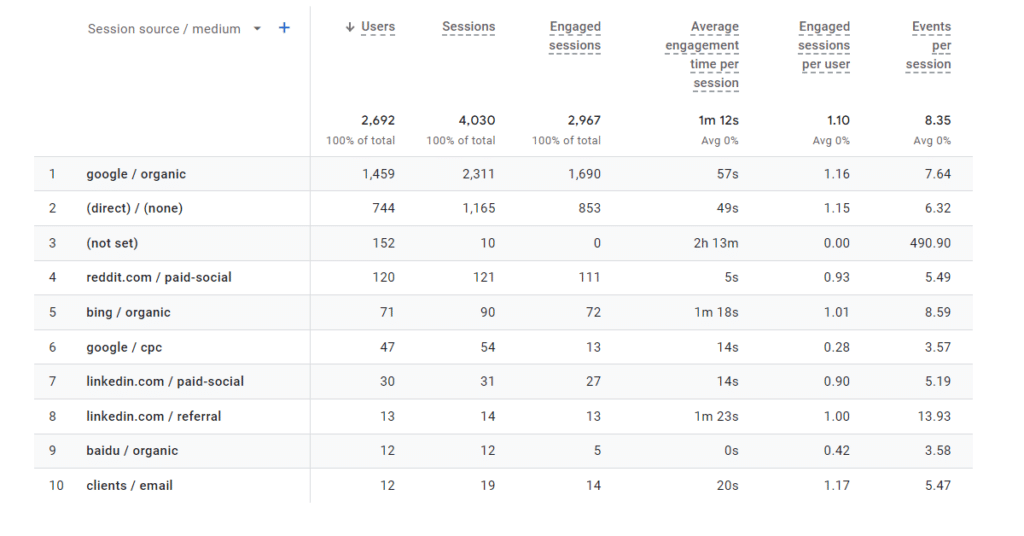
One option is to view traffic by Medium, which would condense the table to just these rows:
- organic
- (none)
- paid-social
- cpc
- referral
This lets us have a more holistic view of our traffic mix, but isn’t perfect. For example, referral combines industry websites and social websites. Plus, you might have your own buckets that you’d like to classify traffic into. Because of this, we recommend setting up custom channels, for which there are quite a few options in GA4, Looker Studio, and BigQuery.
Defining channels in GA4
By default, GA4 already has a channel grouping with values like the ones below:
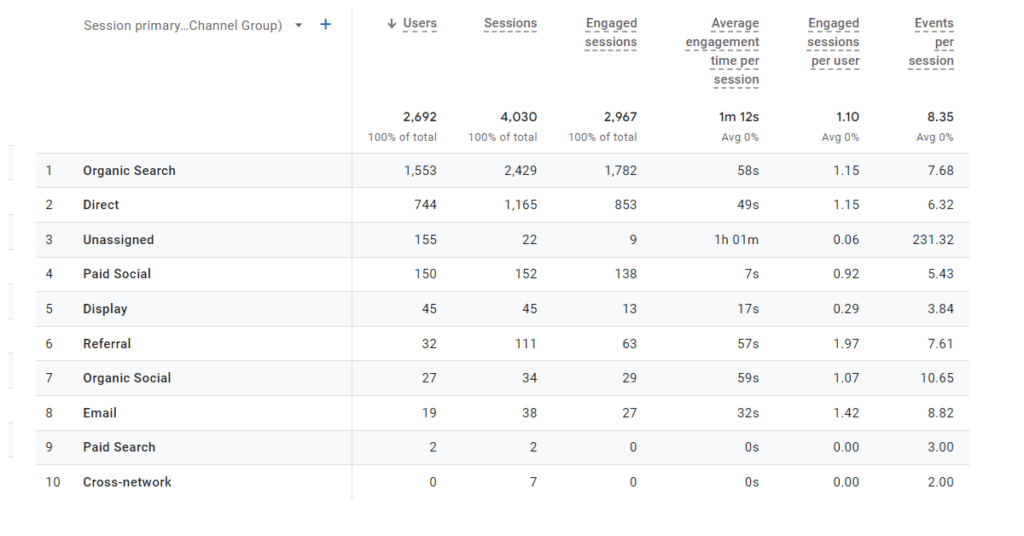
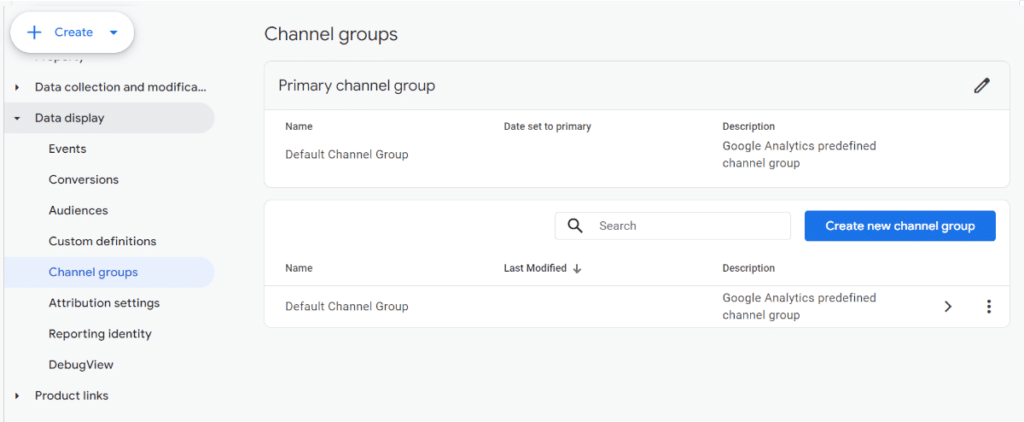
However, you may still want to customise it (e.g. splitting Paid Search into Branded and Unbranded). To do this, go to the admin area, then Data Display > Channel Groups > Create New Channel Group:
This will show you Google’s default options, but you can create your own buckets by using rules. For example, here we are defining a channel called “Tactic Lab Clients” for traffic that comes from any of three client websites:

Once we’re done, we finalise the order and save the channel group:
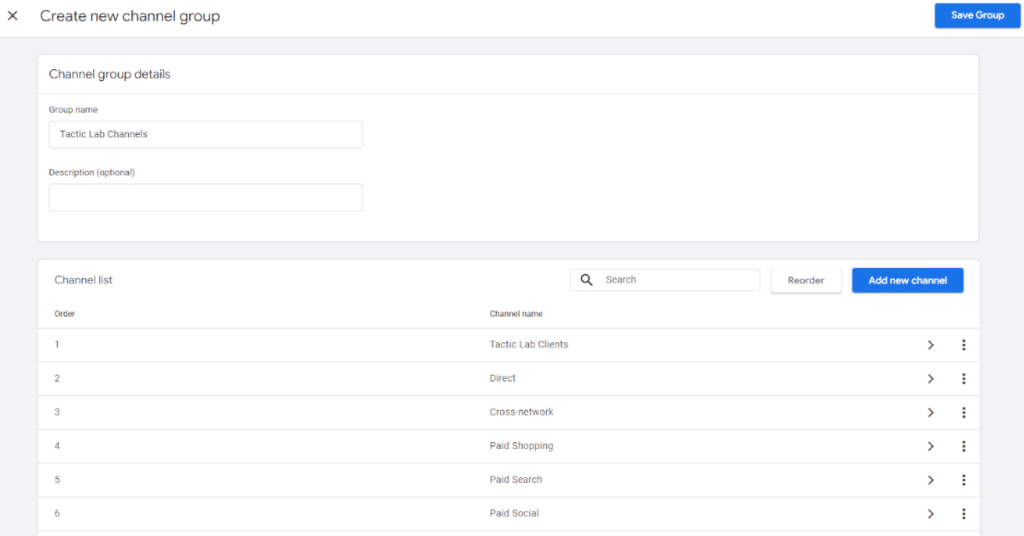
Note that the order matters, Google always tries to match the first channel first, then the second, etc.
This means that if channel 1 is Facebook Paid (defined as source = facebook and medium = cpc), channel 2 can be Facebook Organic defined as just source = facebook. It will only go to the 2nd channel, if medium is not cpc. Using the order can let you write simpler rules.
Once you’ve defined your own custom channel group (or several), you can make one of them primary, to go over and above Google’s default:
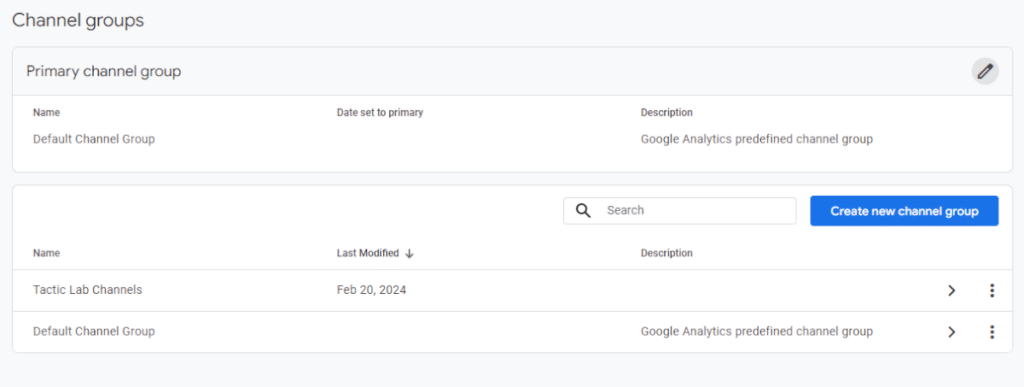
This will affect what’s shown in the Traffic Acquisition and User Acquisition GA4 reports. One improvement over Universal Analytics is, these are retroactive: If I define a channel group today, I can apply it in reports to traffic from months ago.
Channel groups are available in standard reports as well as custom explorations.
What do the channels mean in GA4?
If I create a channel group called “Tactic Lab Channels”, I’ll actually see three new options in the interface:
- Tactic Lab Channels: This is whichever channel GA4 assigns traffic to, based on the attribution model that is specified in your property settings. For most of us, it will be Data Driven Attribution (DDA) meaning GA4 will use machine learning to determine which of your custom channels gets credit for conversions based on what channel it thinks caused the conversion. For example, if the user clicked on a link from a client website and other links but GA4 determines it was the client link that contributed more to the conversion, it will show the “Tactic Lab Clients” channel in the report.
- First User Tactic Lab Channels: This is the custom channel that was used to first get a new user to your website. So if the user clicks on a client website link to Tactic Lab, their first user channel will be “Tactic Lab Clients”. If they visit again, this will not change since that was the first channel.
- Session Tactic Lab Channels: This is the channel used to access the website for a particular session. So if a user clicks on a client link to Tactic Lab, that session’s channel will be “Tactic Lab Clients”, but if on a different session they click a Google search result, that session’s channel will be “Organic Search”, or however I define it.
Using Looker Studio to define channels
Another improvement over Universal Analytics is, when you define a channel grouping in GA4, it comes up as a new dimension in Looker Studio. For this, edit your GA4 data source and click “Refresh Fields”:
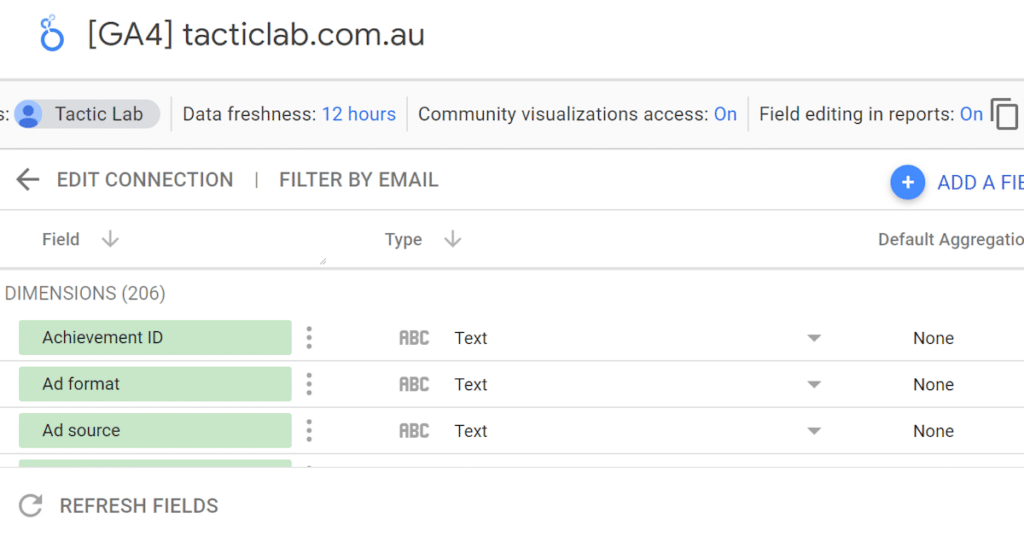
Once you do, the new channel grouping will be flagged as several new fields:
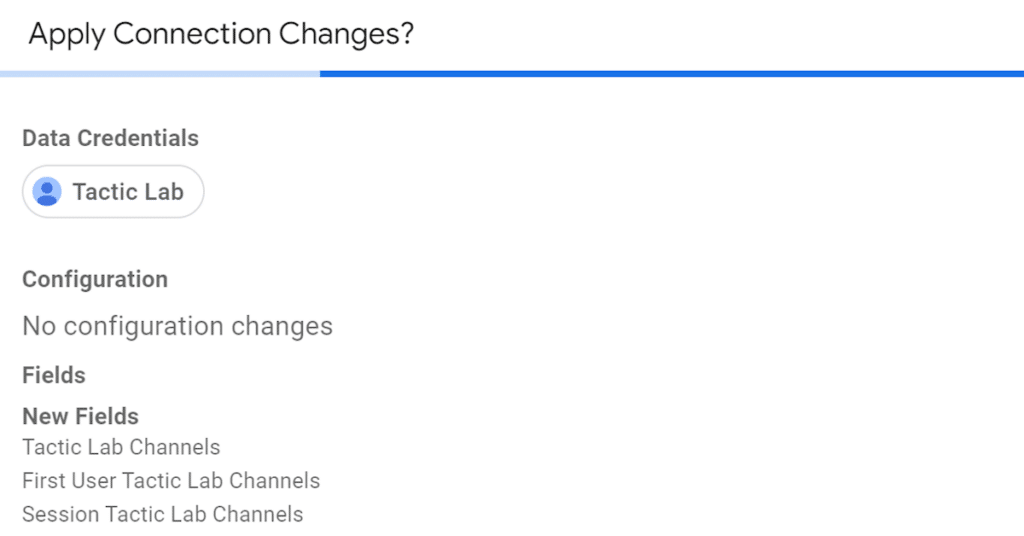
You can also use a Looker Studio custom field to define rules in a more sophisticated way if you like. Here’s an example based on the source/medium field:

Here’s the code for it (click to copy):
case
  when contains_text(Source / Medium, "sponsored") then "Facebook - Paid"
  when contains_text(Source / Medium, "facebook") then "Facebook - Organic"
  when contains_text(Source / Medium, "organic") then "SEO"
  when contains_text(Source / Medium, "ExactTarget") then "EDM"
  when contains_text(Source / Medium, "email") then "EDM"
  when contains_text(Source / Medium, "direct") then "Direct"
  when contains_text(Source / Medium, "linkedin") then "LinkedIn"
  else "Other"
End
This is a very simple one because we’re just using the Source/Medium field as the input. But you can use other fields, too, such as Landing Page, Campaign etc. Just don’t use metrics like Sessions or Pageviews, or the formula will break.
Some useful links on Looker Studio formulas to help you build this:
- The CASE function to set up your classifications
- The REGEXP_MATCH function for more advanced text matching
Finally, if you need to perform more complex working (eg. extracting a subfolder from a URL), you may want to define the smaller formula in a separate custom field and reference this custom field in your actual channel formula.
Using BigQuery to define channels
The GA4 export to BigQuery doesn’t include any channel groupings (since you can retroactively define a channel), so to group into channels you’ll have to do something similar to the Looker Studio custom field case above but using SQL.
Depending on your needs, the SQL query may get quite complex. We’ve built a very basic one below which you can use as a starting case. (NOTE: the traffic_source field in BigQuery is the same as the GA4 First User fields, so it only returns the first source used to access your website. To assign each session a channel or replicate some attribution models, you will need to get a lot more advanced, including potentially extracting the traffic source and UTM tags manually from the URL field using SQL. There are many other examples you can build on such as this one.)

Here’s the code for it if you want to use this as the basis for playing around (click to copy).
SELECT
  CASE
    WHEN traffic_source.medium = "organic" THEN "SEO"
    WHEN traffic_source.medium = "(none)" THEN "Direct"
    WHEN traffic_source.medium = "email" THEN "Email"
    WHEN REGEXP_CONTAINS(traffic_source.source,"facebook") THEN "Facebook"
    ELSE "Other"
  END
  AS channel,
  COUNT (DISTINCT user_pseudo_id) AS users
FROM
  `your-ga4-project-name.your-dataset-name.events_intraday_*`
WHERE traffic_source.medium IS NOT NULL
GROUP BY channel
ORDER BY users desc
Below we have the output, which can be exported elsewhere (including automatically) or even piped straight into Looker Studio:

Whichever way you implement it, having proper channel groupings will make it much easier to see your traffic at a glance, especially if you’re in a high campaign period, or your brand spans multiple stakeholders, teams, or countries. A well-configured channels table showing traffic and conversions/revenue is one of the best starting places for any marketer to work out how things are going and what they should do next.

